Permissions Manager Control Panel
Permissions Manager has two working screens:
- Assigned Permissions lists which members have which access.
- Permissions defines the types of access you can grant.
This page describes every list, form and delete confirmation on those screens. It also explains what each action changes, and what it leaves alone.
For the difference between a Permission and an assignment, and how Subscriptions uses them, see Overview and Using With Subscriptions.
Navigation
The Permissions Manager sidebar contains:
| Sidebar item | Opens | Button |
|---|---|---|
| Assigned Permissions | The list of member assignments. This is the add-on’s home screen. | New opens Assign Permission. |
| Permissions | The list of Permission Items. | New opens Create Permission Item. |
| Utilities > Subscriptions | The Subscriptions Control Panel. Shown only when Subscriptions is installed. | |
| Documentation | External documentation link. |
Assigned Permissions
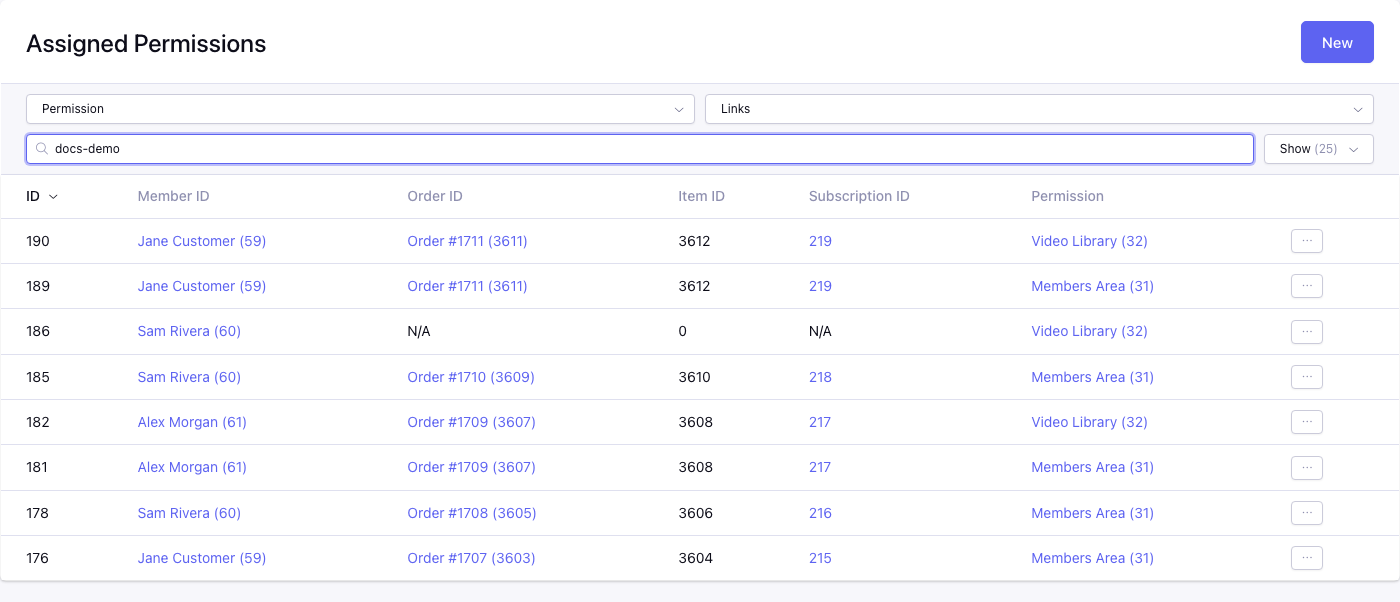
Control panel location: Add-ons > CartThrob Permissions Manager > Assigned Permissions
Each row is one assignment: one member granted one Permission. A member with three Permissions has three rows. Assignments are created by:
- a purchase;
- a Subscription Plan;
- an administrator using Assign Permission.
Columns
| Column | Shows |
|---|---|
| ID | The assignment’s ID. |
| Member ID | The member’s screen name and ID, linked to their member profile. Guest if the member no longer exists. |
| Order ID | The title and entry ID of the linked Order, linked to the entry. N/A when no Order is linked. |
| Item ID | The linked purchased-item entry ID, if any. |
| Subscription ID | The Subscription that created the assignment, linked to that Subscription when Subscriptions is installed. N/A when the assignment did not come from a Subscription. |
| Permission | The Permission Item’s title and ID, linked to the item. Shows only the ID if the item no longer exists. |
The last column holds each row’s action menu: Edit and Delete.
The list is sorted newest first (ID, descending). Select any column heading to sort by that column. ID columns sort by their stored values, not by the displayed names. Use the per-page control to show 25 to 150 rows.
Searching
The keyword search matches part of a member’s username, screen name or email address, or part of a Permission Item’s title. A search for a number also finds exact matches on the assignment, member, Order, item, Subscription or Permission ID.
Filters
- Permission
- Show only assignments of one Permission Item.
- Links
- Find assignments by what they are linked to: - Order, item and subscription linked: the assignment has an Order, a purchased item and a Subscription. - Missing order: no Order is linked. - Missing purchased item: no purchased item is linked. - Missing subscription: no Subscription is linked.
Assignments from ordinary, non-subscription purchases never have a Subscription. They appear under Missing subscription, never under Order, item and subscription linked. Use Missing order to find assignments an administrator created by hand.
Assign Permission and Edit Permission
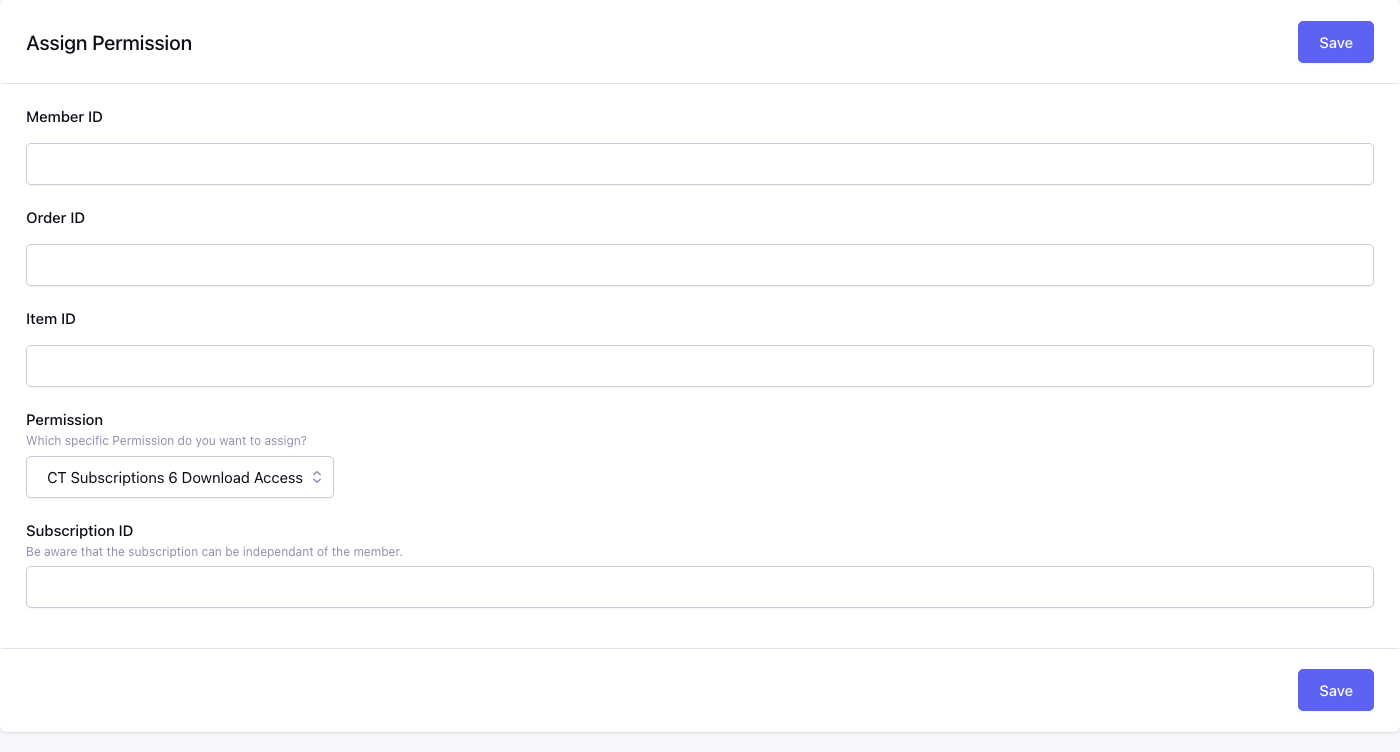
Control panel location: Add-ons > CartThrob Permissions Manager > Assigned Permissions > New
Use Assign Permission to grant access by hand, for example a complimentary membership. Edit on a row opens the same form as Edit Permission.
Member ID*
The ID of the member receiving access. The member must exist.
Order ID
Optional. The entry ID of a related Order, for your records. It is not checked.
Item ID
Optional. The entry ID of a related purchased item. It is not checked.
Permission*
The Permission Item to grant. All Permission Items are listed, including Closed ones.
A member can have each Permission only once through this form. Assigning a Permission the member already has shows “That Permission is already assigned to the Member”. Assignments created by Subscriptions are not checked this way, so a member with two Subscriptions that grant the same Permission has two rows, one per Subscription.
Editing an existing assignment so that only its Member ID changes does not run this check. Check the new member’s assignments before moving one.
Subscription ID
Optional. Links the assignment to a Subscription. The help text reads “Be aware that the subscription can be independant of the member”: the Subscription is not checked against the Member ID.
Only enter a Subscription ID when the assignment should behave like one created by that Subscription:
has_subscription_permissiongrants access through this assignment only while that Subscription qualifies.- Saving that Subscription, or changing its Plan’s permissions, can replace or remove the assignment.
Leave it blank for a standalone grant checked with has_permission.
Saving
Save creates or updates the single assignment and returns to the list.
- Assign succeeds: “Permission Assigned!”
- Edit succeeds: “Permission Updated”.
- Errors: “Error Creating!” or “Error Updating the Permission”. The form keeps the values you entered.
Deleting an Assigned Permission
Delete in a row’s menu opens the Delete Assigned Permission confirmation:
This removes this Permission from this user only. It does not cancel or modify the linked Subscription, Order, purchased item, Plan, or Permission definition.
When the assignment is linked to a Subscription, the dialog adds:
This is not a permanent block. Saving the linked Subscription in the Control Panel resets its assignments from the Plan and restores this Permission when the Plan still includes it. Changing the Plan permission selection, changing plans, or making a new qualifying purchase can also assign it again. Normal rebilling alone does not restore it.
Deleting does not refund, cancel or close anything, and it is not a permanent block for an assignment linked to a Subscription. Changing that Plan’s permission list recreates the assignment. If the Subscription still qualifies, the member regains access. An unchanged Plan save and ordinary renewals do not recreate it. Permissions Manager has no per-member “deny” setting. See the worked example.
To end a customer’s subscription access, cancel or close the Subscription and protect the content with has_subscription_permission. That tag stops granting access when the Subscription no longer qualifies, even if an assignment remains. See Which permission tag should I use?
Permissions (Permission Items)
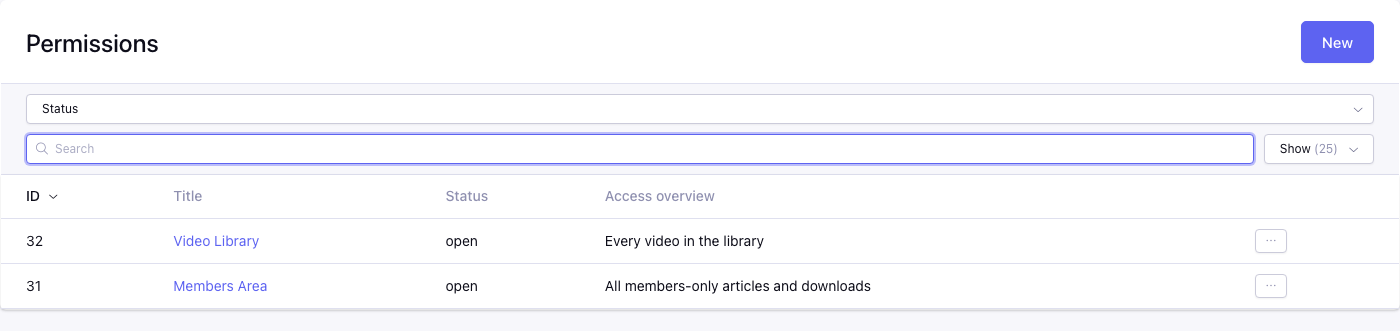
Control panel location: Add-ons > CartThrob Permissions Manager > Permissions
A Permission Item defines one type of access, such as Video Library. Its ID is what templates, Plans and products refer to.
| Column | Shows |
|---|---|
| ID | The Permission Item ID used in permissions="..." template parameters. |
| Title | The name, linked to the edit form. |
| Status | open or closed. |
| Access overview | The short description of what the Permission unlocks, or N/A. |
The list is sorted newest first and can be sorted by any column. The keyword search matches part of the title, description or access overview, and a number also finds that exact ID. The Status filter shows Open or Closed items.
Create Permission Item and Edit Permission Item
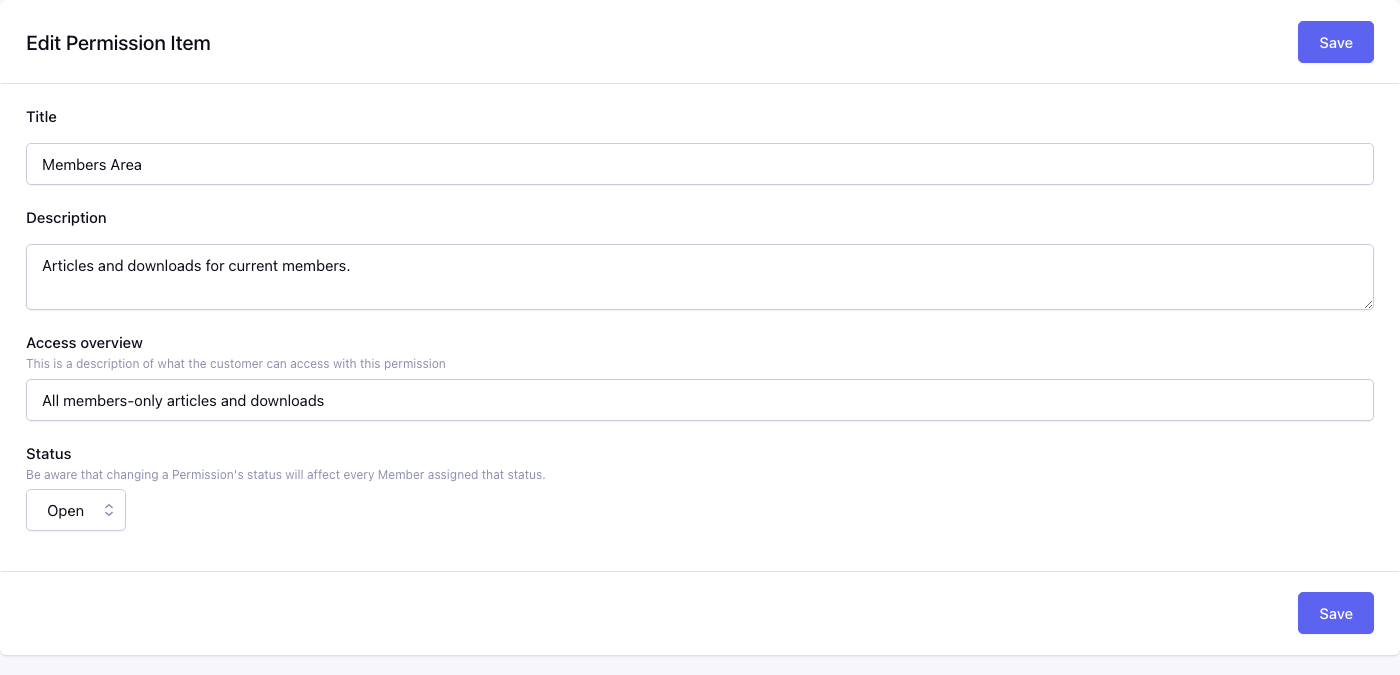
Control panel location: Add-ons > CartThrob Permissions Manager > Permissions > New
Title*
The name shown in the Control Panel, in Plan and product permission pickers, and by template tags. Titles do not have to be unique, but distinct titles avoid confusion in the pickers.
Description
Optional longer description, available to templates.
Access overview
Optional one-line summary of what the customer can access with this Permission. It is available to templates and shown in the list.
Status*
Open or Closed. The default is Open.
Status currently affects only the permission_items tag, which returns an item only when it is Open unless the tag’s status parameter says otherwise. It does not affect access checks:
has_permission,has_subscription_permissionandpermissionsignore it;- Plan and product pickers and the Assign form still list Closed items.
Closing a Permission does not remove anyone’s access. To withdraw access, delete or change the assignments.
Saving changes only the Permission’s definition. Existing assignments keep pointing at the same ID. Success shows “Permission Created!” or “Permission Updated!”.
Deleting a Permission Item
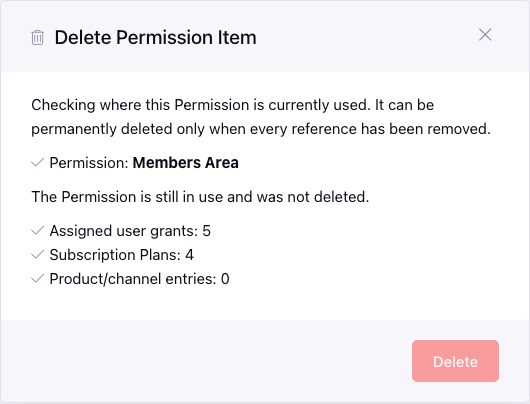
A Permission Item can be deleted only when nothing uses it. Delete opens the Delete Permission Item dialog, which first checks for references:
| Reference | What is counted |
|---|---|
| Assigned user grants | Assignments of this Permission to members. |
| Subscription Plans | Plans (of any status) that include this Permission. |
| Product/channel entries | Channel entries whose CartThrob Permissions field includes it. |
- No references: the dialog says “No references remain. Confirming will permanently delete this Permission definition. Historical orders, invoices, payments, and Subscription billing records are not changed.” Delete is enabled.
- References remain: “The Permission is still in use and was not deleted.” Delete stays disabled. Remove the assignments, take the Permission off the Plans and entries, then try again.
The references are counted again when you confirm. If something changed in the meantime, nothing is deleted and you see “The Permission references changed and it was not deleted. Review it and try again.”
CartThrob Permissions fieldtype
Add a CartThrob Permissions field to a product channel to choose which Permissions a purchase of that product grants. The field shows a multi-select list of every Permission Item, including Closed ones. The field has no settings. For template output, see Fieldtype Reference.