Subscriptions Control Panel: Plans
A Plan is a reusable set of subscription terms you sell: price, billing interval, trial, number of payments and the Permissions it grants. Customers buy a Plan through templates such as plans and add_to_cart_form with subscription_plan_id.
Each purchase creates a Subscription that keeps its own copy of the Plan’s terms. Editing a Plan therefore changes what new customers buy, not what existing subscribers pay. The exception is Permissions; see Saving changes. For background, see Plans, Subscriptions and stored terms.
Plans list
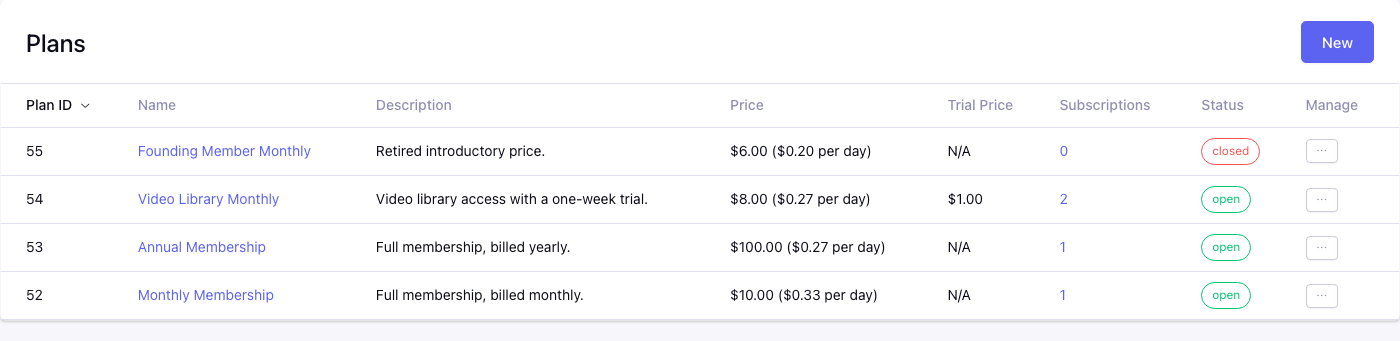
Control panel location: Add-ons > CartThrob Subscriptions > Plans
| Column | Shows |
|---|---|
| Plan ID | The ID used by subscription_plan_id and the plans tag. |
| Name | The Plan name, linked to the edit form. |
| Description | The short description, or N/A. |
| Price | The regular price, followed by an approximate cost per day. Months count as 30 days and years as 365. |
| Trial Price | The trial price, or N/A. |
| Open Subscriptions | The number of Open Subscriptions on the Plan, linked to the Subscriptions list filtered to them. |
| Status | open or closed. |
| Manage | Edit and Delete. |
The list is sorted newest first, 25 Plans per page. New opens the Create Plan form.
The Open Subscriptions column counts only Open Subscriptions. A Plan showing 0 can still have Hold, Pending or Closed Subscriptions, and those still prevent deletion.
Create Plan and Edit Plan
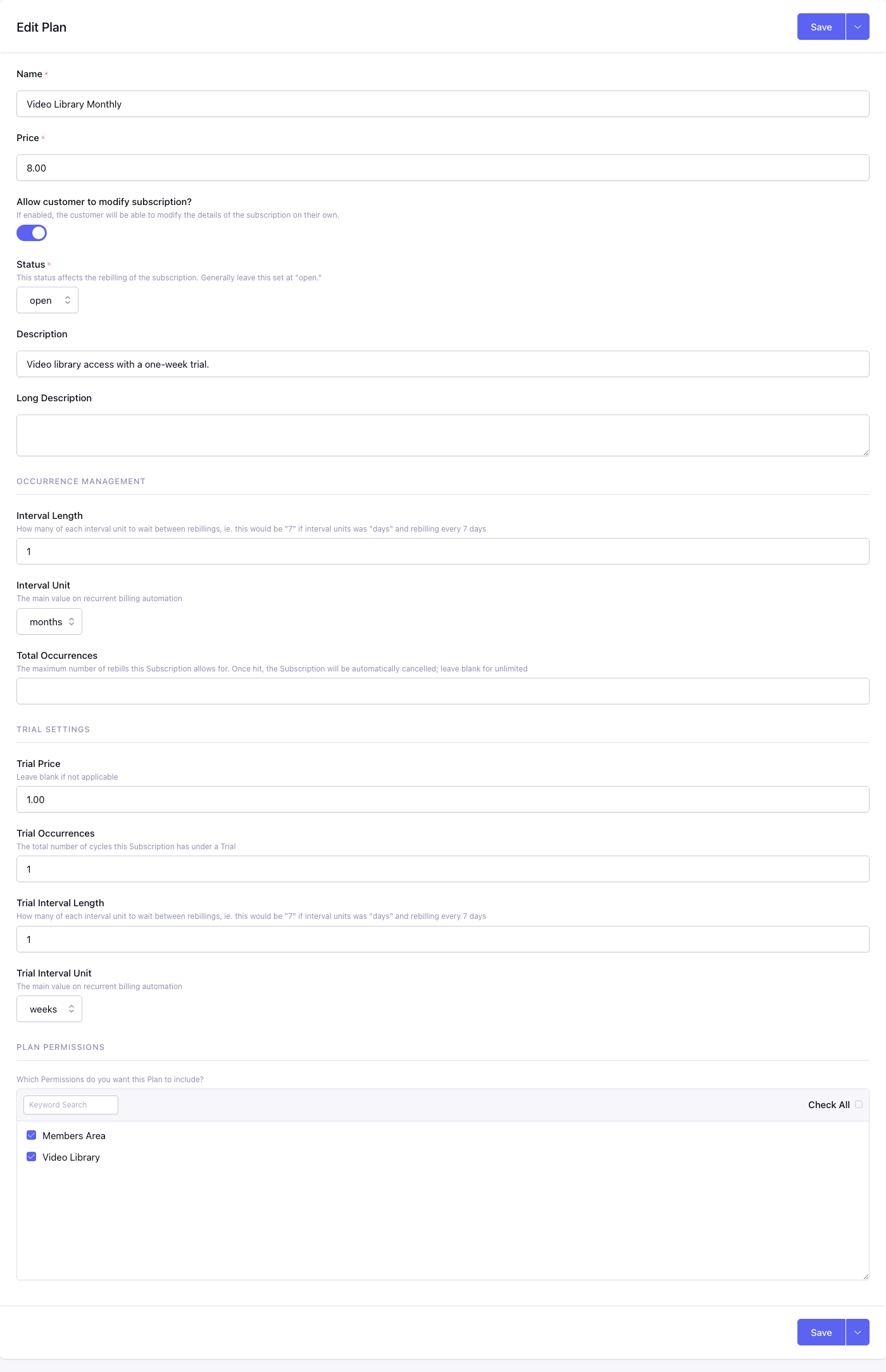
Control panel location: Add-ons > CartThrob Subscriptions > Plans > New
Name*
The Plan name shown in the Control Panel and by template tags. Plans have no separate title or URL title. Each new Subscription copies the name, and the customer can see that copy.
Price*
The regular price charged at checkout and on each renewal.
Allow customer to modify subscription?
Defaults to Yes. When enabled, a Subscription bought from this Plan lets the customer:
- change Plan with
change_plan_form; - rename the Subscription with
update_subscription_details.
Each Subscription stores the value at purchase. Changing it here later doesn’t change existing Subscriptions; edit them individually.
Status*
- open: the Plan can be bought.
- closed: retires the Plan. A closed Plan is hidden from the
plansandplan_select_fieldtags, and adding it to the cart fails with “This subscription plan is closed and cannot accept new purchases.” Customers and administrators cannot move Subscriptions into it.
Existing Subscriptions on a closed Plan continue to renew. Set the status back to open to sell the Plan again.
Description and Long Description
Optional text for your templates. Each new Subscription copies it.
Occurrence Management
- Interval Length*** and **Interval Unit***: how often the customer is billed, for example
1and **months. Units are days, weeks, months or years. Calendar months keep the same day of the month, using the last day of shorter months. - Total Occurrences: the maximum number of payments, including the first payment at checkout. Leave it blank (or enter
0) to bill until cancelled. For example,12with a monthly interval bills twelve times;1bills only at checkout. See Offering multiple billing schedules.
Interval Length must be a whole number of 1 or more; saving a Plan with 0 or a negative number shows a field error. See Billing intervals.
Trial Settings
A trial is a separate schedule billed before the regular one, for example three weekly payments of 1.00 before monthly billing begins.
- Trial Price: the amount charged for each trial payment. Use
0for a free trial. - Trial Occurrences: how many trial payments there are.
- Trial Interval Length and Trial Interval Unit: how often trial payments are billed.
Set Trial Occurrences and Trial Interval Length to at least 1 for a trial to take effect. If either is missing, the trial occurrences and interval are not saved, and there is no trial schedule.
Trial Price is still saved in that case, but it is not used: new purchases of the Plan are charged its regular Price. Turning the trial schedule back on uses the saved Trial Price again.
Plan Permissions
Check the Permissions a Subscription to this Plan grants. Each new Subscription assigns them to the customer. Protect content with has_subscription_permission, so access follows the Subscription.
Saving changes
Save on Create shows “Plan Created!”. On Edit it shows “Plan Updated!”.
Saving an edited Plan does not change existing Subscriptions’ price, interval, occurrences, trial terms or Allow customer to modify subscription?. Each Subscription keeps the terms it was bought with.
Plan Permissions are the exception. If you change which Permissions are checked, every Subscription on the Plan, including Closed ones, has its permission assignments replaced with the new list. This also replaces Permissions customized on individual Subscriptions. Saving without changing the Permissions does not touch existing assignments. See Editing Plan Permissions.
This is intended. It also means that an assignment deleted in Permissions Manager can come back when you change this Plan’s Permissions. A former subscriber on a Closed Subscription can also receive the new list. Synchronization never reopens a Subscription or restarts billing. Whether the member can actually use the Permission depends on the tag protecting the content: has_subscription_permission checks that the Subscription still qualifies, and has_permission does not. See Which permission tag should I use?
Clone to New Plan
On the Edit form, the Save menu offers Clone to New Plan. It opens a Create Plan form filled with the saved Plan’s settings and Permissions, with Copy of before the name. Nothing is created until you save that form. Unsaved changes on the Plan you were editing are discarded. Cloning doesn’t copy or move any Subscriptions. See Creating and cloning Plans.
Deleting or closing a Plan
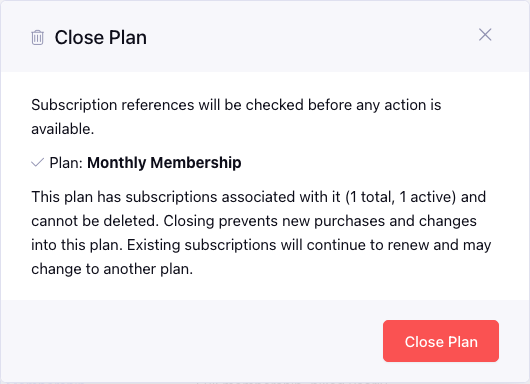
Delete in the list checks whether the Plan has any Subscriptions, in any status, before offering an action:
| Situation | Dialog | Action |
|---|---|---|
| No Subscriptions | Delete Plan: “This plan has no subscriptions. Delete it permanently?” | Delete Plan permanently deletes it. |
| Subscriptions exist; Plan is open | Close Plan: “This plan has subscriptions associated with it (N total, N active) and cannot be deleted. Closing prevents new purchases and changes into this plan. Existing subscriptions will continue to renew and may change to another plan.” | Close Plan sets its status to closed. |
| Subscriptions exist; Plan already closed | Plan Cannot Be Deleted, same message | View Subscriptions lists them. |
A Plan with Subscriptions can never be deleted, because its Subscriptions refer to it. Close it instead.