Subscriptions Control Panel: Subscriptions
The Subscriptions screens are where you find, inspect and manage individual customer Subscriptions:
- create a Subscription by hand;
- change its terms, dates or saved card;
- charge it outside the schedule;
- cancel it.
For what each status means and when a customer keeps access, see Subscription statuses and access. For a payment that needs review, see Payment review and recovery.
Two warnings can appear at the top of any Subscriptions screen:
- “Permission Manager must be installed to use Subscriptions”: you are returned to the Add-ons page until Permissions Manager is installed.
- “You haven’t configured Purchased Items for use by CartThrob. This will prevent refunds from being applied.”: configure Purchased Items. Until you do, Last Paid Amount and Refundable Amount show zero, and cancellation refunds and Plan-change credits are zero.
Subscriptions list
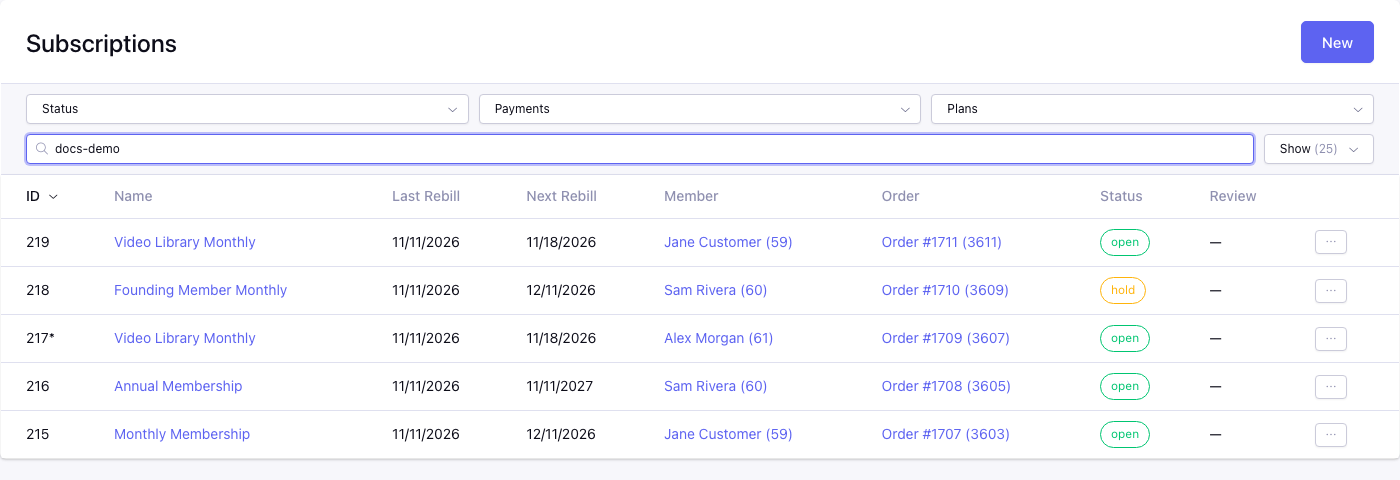
Control panel location: Add-ons > CartThrob Subscriptions > Subscriptions
This is the Subscriptions home screen. New opens Create Subscription.
Columns
| Column | Shows |
|---|---|
| ID | The Subscription ID. An asterisk (*) after the ID means the Subscription has no saved card and will not renew, but is not yet Closed. A customer cancellation without a refund looks like this until its End Date passes. |
| Name | The Subscription’s name, linked to Edit Subscription. |
| Last Rebill | When the last payment was collected. |
| Next Rebill | The next scheduled renewal. |
| Member | The member’s screen name and ID, linked to their member profile. |
| Order | The linked Order’s title and ID, linked to the Order entry. |
| Status | Open, Closed, Hold or Pending. See statuses. |
| Review | A red Review tag when a payment or refund needs review, linked to the review. |
The list is sorted newest first. Select a column heading to sort by it; Next Rebill and Review cannot be sorted. Use the per-page control to show 25 to 150 rows.
Searching
The keyword search matches part of the Subscription name, or part of the member’s username, screen name or email address. A search for a number also finds that exact Subscription ID, member ID or Order ID.
Filters
- Status
- Open, Closed, Hold or Pending.
- Payments
- Two options: - Overdue: Subscriptions the next run of the rebill command will process. That covers due renewals, Hold retries whose retry interval has passed, and Subscriptions past their End Date that are waiting to be closed. Subscriptions under review are excluded. (This replaces the separate pending-billing list in earlier versions; old links to it open this filter.) - Needs review: Subscriptions with an unresolved payment or refund, whatever their status.
- Plans
- Subscriptions on one Plan.
Row actions
Each row’s menu offers:
- Edit, which reads Review when a payment needs review;
- Cancel;
- Charge Next Billing Now.
Cancel and Charge Next Billing Now are hidden while a payment needs review.
Subscriptions cannot be deleted. Use Cancel, or set the status to Closed, to end one.
A member’s Subscriptions
Control panel location: Add-ons > CartThrob Subscriptions > Subscribers > View Subscriptions
Opened from View Subscriptions on the Subscribers list, or the Member link on the Edit and Cancel screens. It lists one member’s Subscriptions with the same columns, minus Member. New opens Create Subscription.
Each row has a Charge Next Billing Now action, which opens Charge Next Billing Now for that Subscription.
Create Subscription
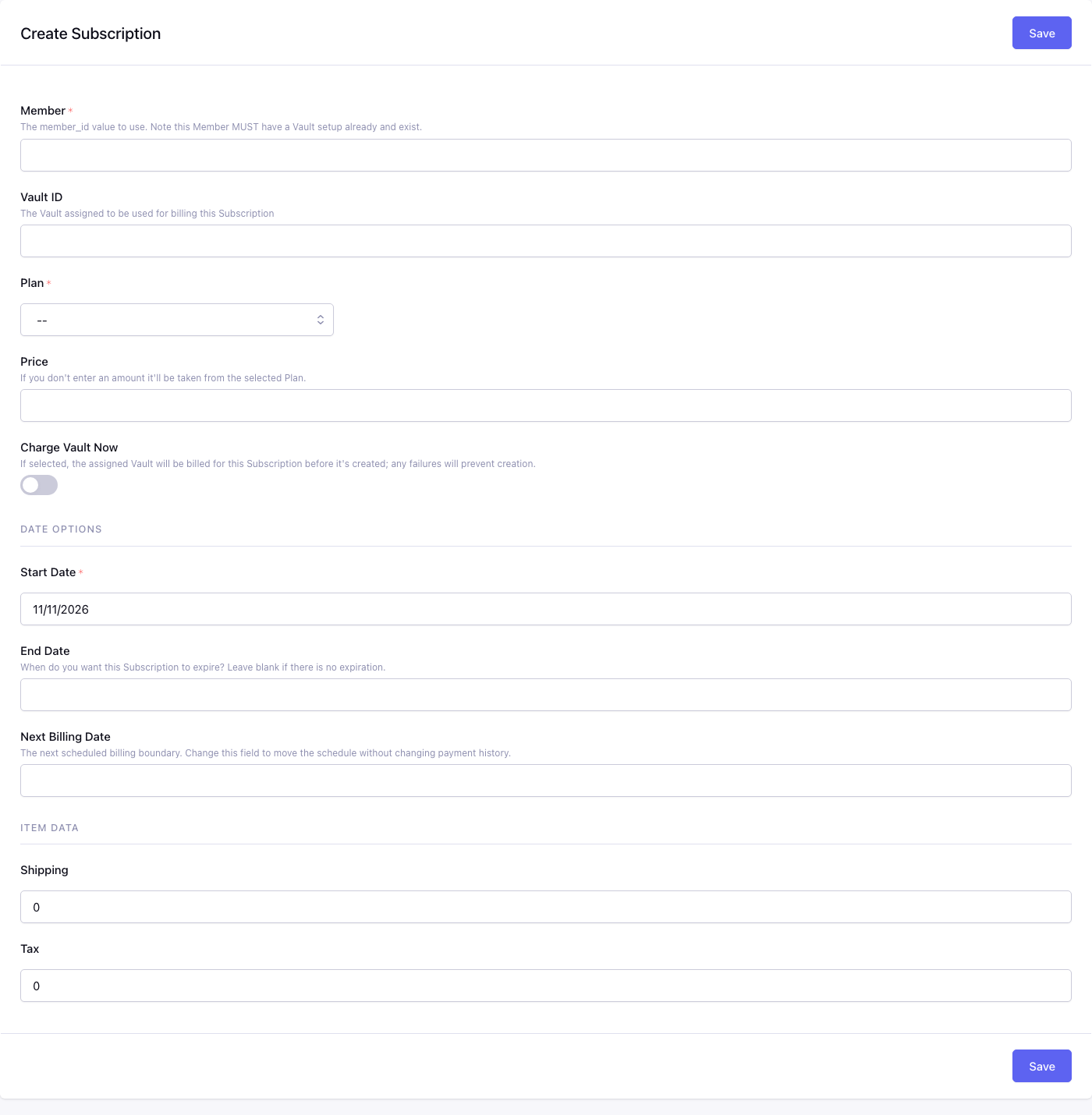
Control panel location: Add-ons > CartThrob Subscriptions > Subscriptions > New
Create a Subscription for an existing member who already has a saved card, for example when moving a customer from another billing system or setting up an agreement by phone. The new Subscription takes its terms from the selected Plan and starts Open.
Member*
The member ID. The help text reads “Note this Member MUST have a Vault setup already and exist.” The member needs at least one saved card.
Vault ID
The ID of the saved card to bill. The card must belong to the member, and its gateway must support subscriptions. Saved cards are listed in CartThrob > Vaults.
Plan*
The Plan whose terms the Subscription copies: name, description, interval, total occurrences, trial terms, Allow customer to modify subscription? and permissions. Only Open Plans are listed.
Price
The regular renewal price. Leave it blank to use the Plan’s price.
Charge Vault Now
Yes charges the saved card immediately. The charge is the Price plus the Shipping and Tax below. Choose No to create the Subscription without collecting a payment: a $0 Order is created and linked, and the first scheduled renewal collects the first payment.
A Subscription created with No shows a Last Paid Amount and Refundable Amount of zero until its first scheduled payment is collected, so there is nothing to refund before then.
With Yes, the Subscription and a payment Order are saved before the card is charged. A declined charge leaves the Subscription on Hold and takes you to its Edit screen to review or retry it. An uncertain result leaves it for Payment review.
Date Options
- **Start Date***: the date used for the billing calendar and the earliest date on which scheduled billing can select this Subscription. It must be earlier than End Date. It is not a content-access activation date.
- End Date: optional stop date. Leave it blank for no expiration.
- Next Billing Date: optional first renewal date. Leave it blank to bill one interval after the start.
What Start Date controls
A future Start Date prevents the scheduled rebill job from selecting the Subscription before that date, even if its Next Billing Date is earlier. It does not grant or remove content access: an otherwise qualifying Subscription with assigned permissions can allow access before its Start Date.
With Charge Vault Now set to No, a blank Next Billing Date is calculated one interval after Start Date, using the trial interval when applicable. For example, a monthly Subscription with Start Date January 15 has its next scheduled payment on February 15. Enter Next Billing Date explicitly if you need a different first scheduled payment date.
Charge Vault Now still charges immediately, regardless of a future Start Date. After a successful initial charge, Next Billing Date is recalculated from Start Date and the applicable interval; a Next Billing Date entered on the Create form is not retained. Check the saved schedule afterward and use Edit Subscription to adjust it if needed.
These Control Panel date fields do not provide a complete delayed-charge or delayed-access purchase workflow.
Item Data
Shipping and Tax are added to the immediate charge when Charge Vault Now is Yes. They are not used otherwise, and renewals calculate shipping and tax from the rebill settings.
Saving
Save checks the member, saved card and Plan:
- “Invalid Member ID”.
- “This member doesn’t have an active Vault”.
- “Vault isn’t owned by the Member”.
- “This saved card uses a gateway that does not support Subscriptions. Choose a compatible saved card.”
- “This subscription plan is closed and cannot accept new purchases.”
- “Start Date must be less than End Date”.
On success, the Plan’s permissions are assigned, “Subscription Created!” is shown, and you return to the list.
With Charge Vault Now, the form can be submitted only once. A repeated submission shows “This subscription creation form has already been submitted. Check the subscription list before creating another.”
If the charge fails, the gateway’s message is shown. If the result is uncertain, the Subscription needs review.
Edit Subscription
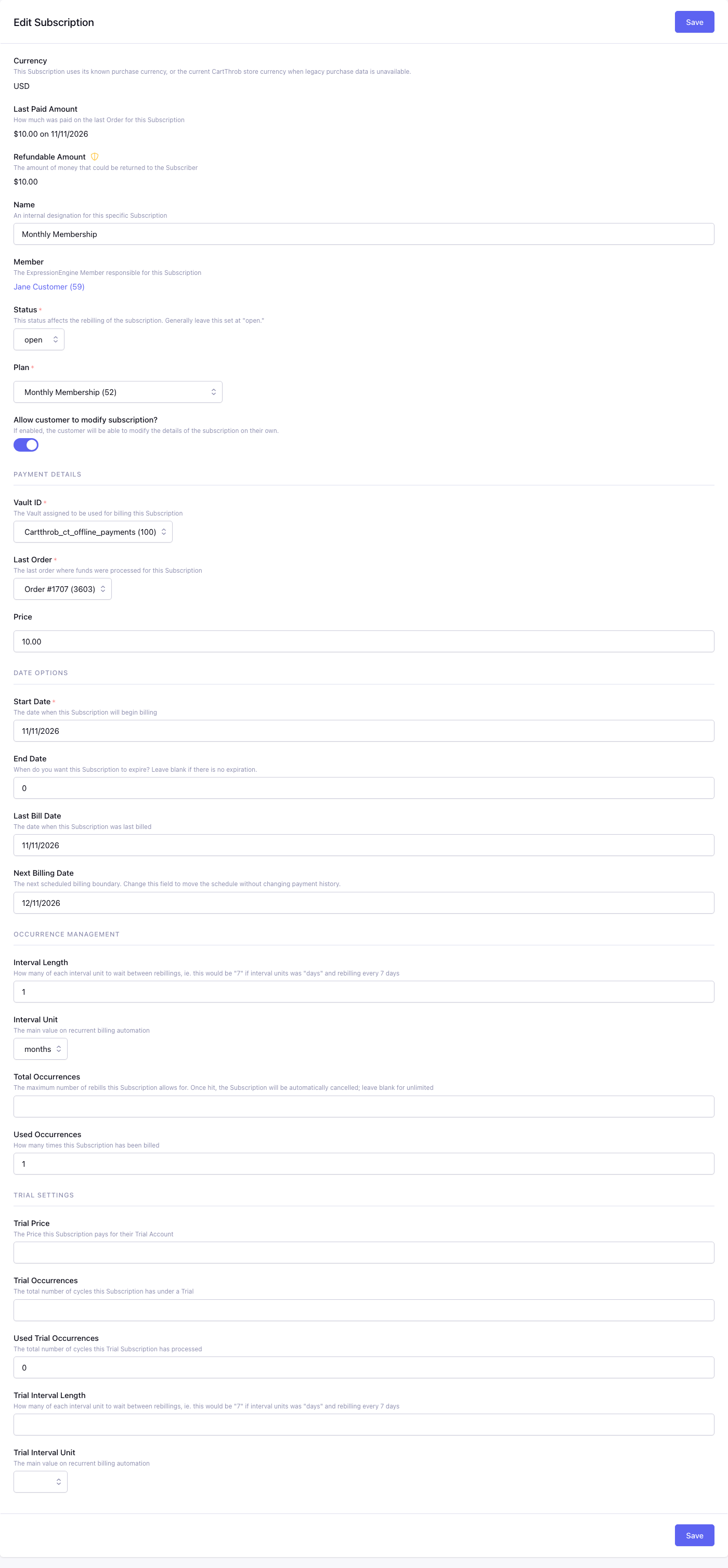
Control panel location: Add-ons > CartThrob Subscriptions > Subscriptions > Edit
The Edit screen shows one Subscription’s stored terms, and changes them for that Subscription only. Editing never charges or refunds.
If the Subscription cannot renew, a Subscription Will Not Renew warning appears at the top. The possible reasons are: it is Closed, it has no saved card, its Total Occurrences are used up, or its End Date has passed. The warning describes the saved record; it does not mean your edit failed.
Payment review lock
While a payment or refund is unresolved, every field is read-only and the screen shows “This subscription is locked while its payment or refund is under review.” The Payment Review panel shows the saved evidence. Resolve payment review opens the resolution form. See Payment review and recovery.
Summary fields (read-only)
- Currency: the currency this Subscription bills in. It is fixed at purchase. Older Subscriptions without purchase data use the current store currency.
- Last Paid Amount: the amount of the last paid Purchased Item, and its date. Requires Purchased Items.
- Refundable Amount: the unused part of the current paid period that a cancellation refund would return. See Cancel Subscription.
- Member: the member responsible for the Subscription, linked to their Subscriptions. It cannot be changed.
Name
The Subscription’s own name, shown in the list and by template tags. Changing it does not rename the Plan.
Status*
Open, Hold or Closed. Pending is listed only when the Subscription is already Pending. The help text advises leaving it Open.
Changing the status to Closed stops billing and sets End Date to the Last Bill Date plus one interval. That replaces any End Date entered in the same save. See Closed.
Changing the status to Open from Hold makes the Subscription eligible for the next rebill run if it is due.
Plan*
The Plan the Subscription belongs to. Open Plans and the current Plan are listed.
Changing the Plan here only moves the Subscription and applies the new Plan’s permissions. It does not copy the new Plan’s price, interval or trial terms, and it does not charge or credit anything. Edit those fields yourself, or have the customer use the Change Plan Form, which applies the new terms and can charge or refund the difference.
A Subscription cannot be moved to a Closed Plan: “Closed plans remain available to existing subscribers, but new subscriptions cannot be moved into them.”
Allow customer to modify subscription?
Whether the customer can change Plan with change_plan_form or rename the Subscription with update_subscription_details. It was copied from the Plan at purchase. Changing the Plan’s setting later does not change this value.
Payment Details
- Vault ID: the saved card renewals are charged to. Only this member’s cards on a subscription-capable gateway are listed. Choosing – removes the card, which stops renewal.
- Last Order: the most recent Order where funds were collected. It is the basis for Last Paid Amount and refunds.
- Price: the regular renewal price.
Date Options
- **Start Date***: the billing calendar anchor and earliest date for scheduled billing selection. Changing it recalculates Next Billing Date unless you also enter a different Next Billing Date. That recalculation uses Last Bill Date plus the applicable interval, with Start Date as the calendar anchor; it does not simply schedule a payment on the new Start Date.
End Date: optional stop date. A future End Date keeps access after billing stops.
Last Bill Date: when the last payment was collected.
- Next Billing Date: the next renewal. Changing it moves the schedule without changing payment history. The chosen date, at 00:00 UTC, becomes the calendar day for later renewals.
A future Start Date does not delay an immediate charge or content access. To move the next scheduled payment to a specific date, set Next Billing Date explicitly and check the saved result. See What Start Date controls.
Occurrence Management
- Interval Length and Interval Unit: the billing schedule, for example
1andmonths. Units are days, weeks, months or years. Changing them recalculates Next Billing Date unless you also set it. - Total Occurrences: the maximum number of payments, including the first. Blank means unlimited.
- Used Occurrences: payments collected so far.
Trial Settings
Trial Price, Trial Occurrences, Used Trial Occurrences, Trial Interval Length and Trial Interval Unit describe a separate trial schedule. A trial applies only when both a trial interval and trial occurrences are set.
Saving
Save validates the values and stores them. It then applies the Plan’s permissions to this Subscription, unless specific permissions are submitted with the save. This replaces permissions customized for this Subscription, and recreates any of its assignments that were deleted in Permissions Manager. See Editing Plan Permissions. On success, “Subscription Updated!” is shown.
Possible errors:
- “Error Updating Subscription”: field validation failed. The submitted values stay on the form.
- “This subscription is temporarily busy. Wait a moment and try again.”
- “A payment or refund for this subscription needs review. Resolve it before charging, refunding, cancelling, or editing this subscription.”
Saving a Subscription on Hold restarts its retry wait. See Hold.
Charge Next Billing Now
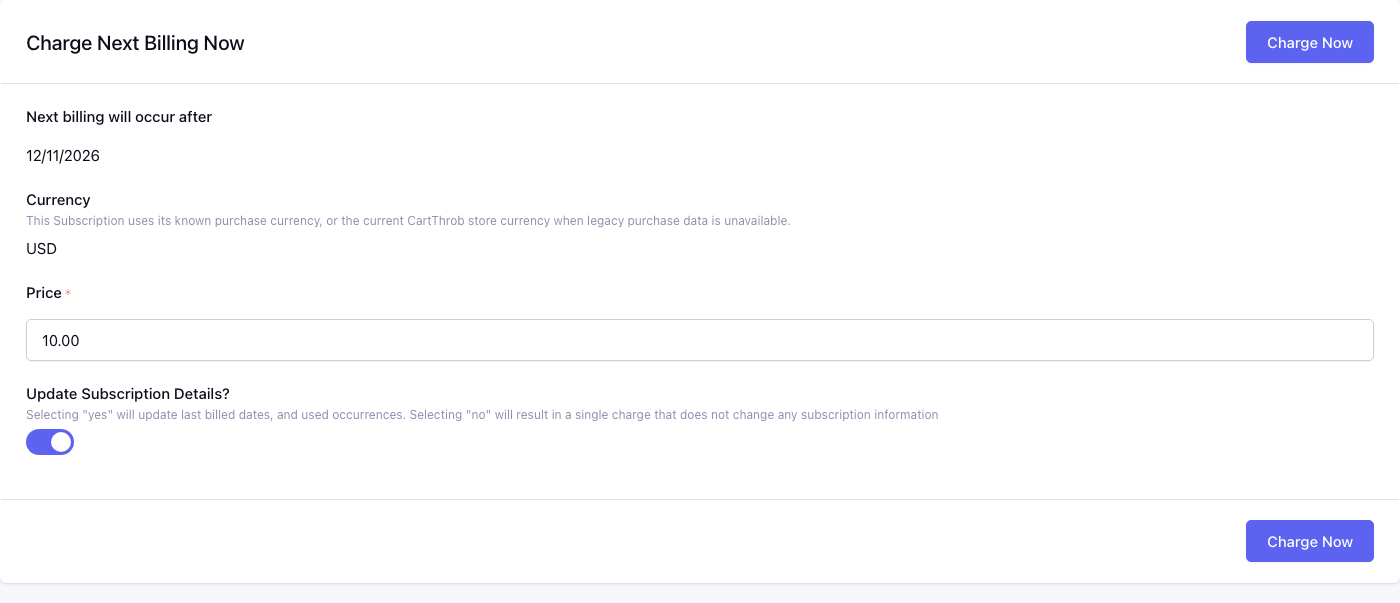
Control panel location: Add-ons > CartThrob Subscriptions > Subscriptions > Charge Next Billing Now
Charge the Subscription’s saved card immediately, outside the schedule. Use it to collect a renewal early, or to recover a Subscription on Hold after the customer fixes their card.
Next billing will occur after (read-only)
The renewal date this charge would cover.
Currency (read-only)
The Subscription’s currency.
Price*
The amount to charge. It starts at the regular price, or the trial price during a trial. Tax, shipping and discounts are not recalculated, so review the amount before charging.
Update Subscription Details?
Yes (default) treats the charge as the next renewal:
- the status becomes Open;
- Last Bill Date becomes today;
- Used Occurrences increases;
- failed attempts reset;
- Next Billing Date advances, skipping any missed dates.
No records a separate charge. The status, schedule, Used Occurrences and the Subscription’s Last Order don’t change, so Last Paid Amount, cancellation refunds and Plan-change credits keep using the last period payment. The charge’s Order is still linked to the Subscription and appears in its payment history.
Charging
Charge Now charges the saved card through its own gateway and creates an Order.
- On success: “Subscription Charged!”, and the
manual_billnotification is sent. - A decline shows the gateway’s message.
- An uncertain result leaves the Subscription Pending review.
The charge cannot be used on a Closed Subscription (“Subscription Isn’t Active”), on one with no saved card (“Invalid Vault on Subscription”), or while another payment needs review.
An invalid Price shows “Error Charging Subscriber!” with the field error.
Cancel Subscription
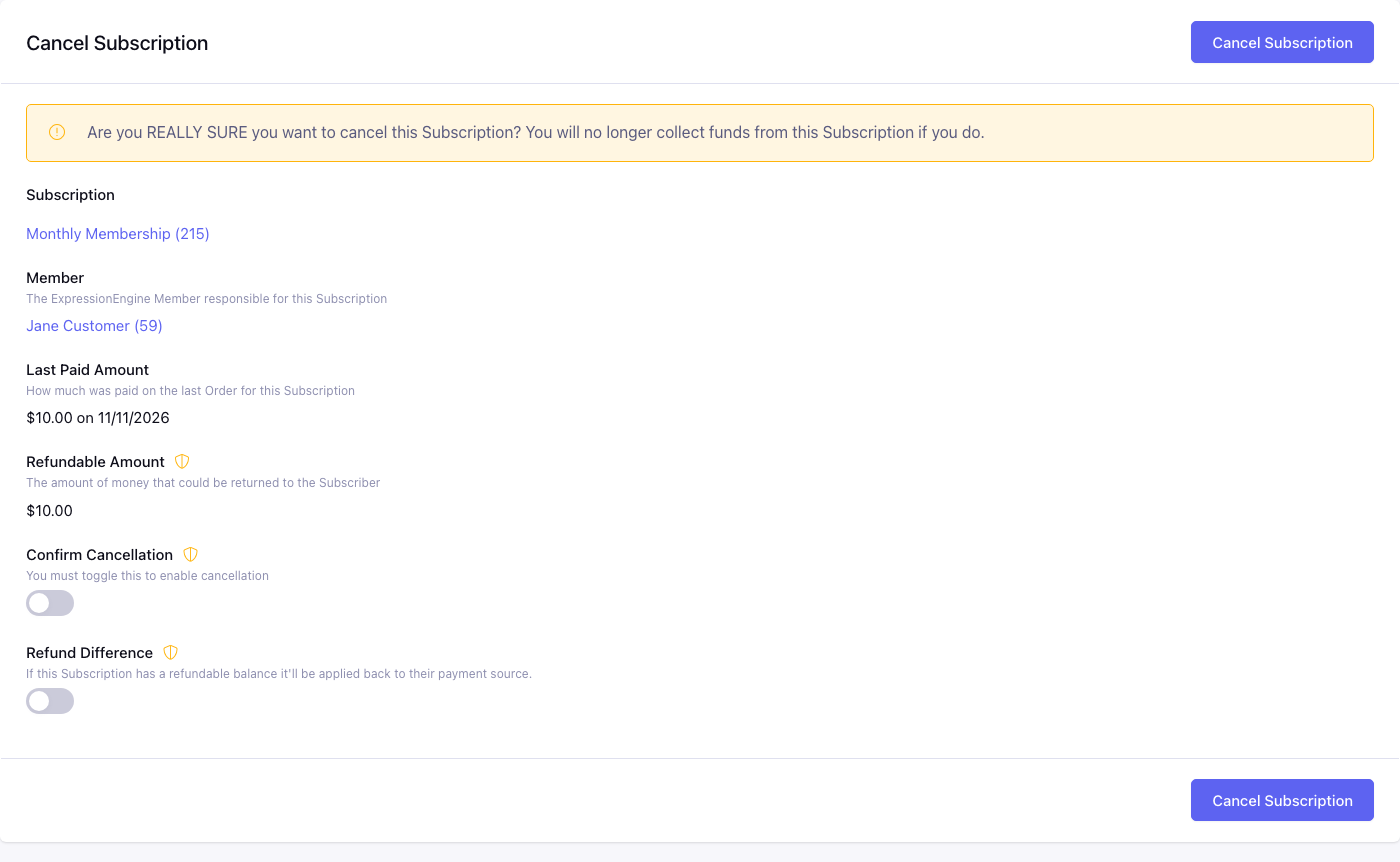
Control panel location: Add-ons > CartThrob Subscriptions > Subscriptions > Cancel
Stop an Open Subscription from renewing, optionally refunding its unused time or collecting a balance owed. The screen warns: “Are you REALLY SURE you want to cancel this Subscription? You will no longer collect funds from this Subscription if you do.”
A Subscription that isn’t Open, or that already has no saved card, can’t be cancelled here. You’ll see “Subscription Isn’t Active” or “Subscription Will Already Not Renew”.
Subscription and Member (read-only)
The Plan (or Custom Plan) and the member.
Last Paid Amount (read-only)
The last paid Purchased Item amount and date.
Refundable Amount (read-only)
Shown when there is something to refund. It is the unused part of the current paid period:
last paid amount × days until the next billing date ÷ days in the billing interval
Months count as 30 days and years as 365. The amount is rounded to the currency and never exceeds the last paid amount. It is zero during a trial, for a Subscription that isn’t Open, or without Purchased Items.
Delinquent Amount (read-only)
Shown when the Next Billing Date has passed without payment. It is the regular price per day multiplied by the days overdue.
Confirm Cancellation*
Must be Yes. Nothing happens otherwise.
Refund Difference
Shown when there is a Refundable Amount. Yes refunds that amount to the original payment through the gateway, then closes the Subscription. No keeps the money and lets the customer keep access until the end of the period they paid for.
Balance Account
Shown when the Subscription is delinquent. Yes charges the Delinquent Amount, then closes the Subscription.
Outcomes
| Choice | Result |
|---|---|
| No refund (default) | Saved card removed and End Date set to the next billing date. Status stays Open, and access lasts until that date. The rebill command then closes it. The subscription_cancel notification is sent. |
| Refund Difference = Yes | Renewal stops. The refund is sent to the gateway. On a confirmed refund, the original Order’s total is reduced, and the Subscription is Closed with access ending immediately. If the result is uncertain, the Subscription needs review, and access lasts no longer than the paid-through date. See Cancellation refunds. |
| Balance Account = Yes | The balance is charged. On success, Closed. |
| Delinquent, no balance charged | Closed immediately, with no notification. |
| Paid trial | Same as no refund: access to the end of the paid trial. |
| Free trial | Closed immediately. |
The full access effects are in Cancellation outcomes. On success, “Subscription Cancelled” is shown.
When the refund needs attention
| Message | Meaning |
|---|---|
| “This refund could not be prepared. The subscription has not been cancelled. Please contact the store.” | Required data could not be verified. The gateway was not contacted. |
| “The refund was declined. The subscription will not renew. Access continues only until the paid-through date.” | The gateway declined the refund. Renewal stays stopped; the customer keeps only the paid time remaining. |
| “This cancellation refund needs review. The refund may already have completed. Please contact the store before trying again.” | The result is uncertain. Do not refund again; see Payment review. |
| A gateway that can’t refund automatically (for example PayPal) | The screen explains that the refund must be issued in the gateway’s dashboard and offers Prepare manual refund. Select it before leaving CartThrob so renewal stays blocked, issue the refund in the processor, then record the result in Payment Review. |
The same messages are summarized in Control Panel payment responses.