Price Modifiers Configurator FieldType
See also: item options dedicated tag. The dedicated tag does not care about field name, and will output all item options found in your channel entry, regardless of name. The syntax is a bit easier to understand, so we highly recommend skipping right on over to it instead.
See also: price modifiers overview
CartThrob’s price modifiers configurator custom fieldtype is used to display options from configurable products. These modifiers can be no-cost options, or they can add cost to the product. For more information, please see this article on configuring price_modifiers.
This page covers Price Modifiers Configurator. One Configurator field contains several option groups that resolve to one generated combination/SKU. It is not a collection of independent standard Price Modifiers fields.
Product channel setup
After assigning the Configurator field to a product channel, go to CartThrob › Products, manage that channel, and configure its product field mappings:
| Product channel setting | Configurator mapping |
|---|---|
| Price Field Name | Usually map a normal number, text, or simple price field for the product’s base price. Map the Configurator itself only when the generated combination row should supply the entire price from a zero base. |
| Product Inventory Field Name | Optionally map the same Configurator field when inventory belongs to each complete combination/SKU. |
| Product Weight Field Name | Optionally map the same Configurator field when weight belongs to each complete combination/SKU. |
| Shipping Cost Field Name | Use a separate compatible field. The Configurator does not provide this value. |
| Tax Exempt Field Name | Use a separate compatible field. The Configurator does not provide this value. |
| Shipping Exempt Field Name | Use a separate compatible field. The Configurator does not provide this value. |
| Global Price | Use when every product in the channel shares one base price. The selected Configurator combination is added to it. |
None of these settings must point to the Configurator merely because the field is assigned to the channel. CartThrob automatically discovers it as a modifier field and adds the selected generated combination’s price to the product’s base price.
Choose one base-price strategy:
- map a normal product price field and treat generated combination prices as adjustments;
- set Global Price and treat generated combination prices as adjustments;
- map the Configurator as Price Field Name only when its generated combination prices are the complete product prices and a zero base is intentional.
Do not use both a mapped base-price field and Global Price for the same channel. Global Price takes precedence.
Installation
Upgrade check for existing configurator fields
After upgrading CartThrob, open representative entries that already contain Price Modifiers Configurator data before editing or resaving them. Verify:
- Every option group and option is still present.
- Option labels, values, price adjustments, SKUs, and inventory values are unchanged.
- The front-end
item_optionsoutput still matches the control-panel entry. - A configured product can be added to the cart with the intended selection.
- Inventory changes apply to the selected modifier combination.
Merely viewing an entry should not be treated as a migration step. Keep a database backup and compare legacy entries before and after any intentional save, especially when they contain multiple groups or older serialized field data.
Differences between this field type and the standard Price Modifiers fieldtype
| Standard Price Modifiers | Price Modifiers Configurator | |
|---|---|---|
| Structure | One field is one independent option set, such as Color. Separate Size and Color fields remain independent. | One field contains multiple groups, such as Size and Color. |
| Submitted input | item_options[product_color] |
One generated input per group, such as item_options[configuration:shirt_configurator:color] |
| Price | The selected row contributes its adjustment. | All selected groups resolve to one generated combination row, whose calculated or overridden price contributes the adjustment. |
| Inventory | When the standard field is mapped as Inventory, stock belongs to the selected row, such as Green. | When the Configurator is mapped as Inventory, stock belongs to the complete generated row, such as Large + Green. |
| Omitted choices | Optional unless the template uses add_to_cart_form’s required parameter. |
Only when the Configurator is mapped as Inventory must enough selectable group values be submitted to resolve one complete valid generated combination/SKU. Otherwise, use template required rules to make groups mandatory. |
| Dynamic controls | Standard selectable option rows. | Supports multiple dynamic option groups and dynamic text fields. |
Ordering groups and options
Use the drag handles to arrange option groups and the values inside each group. Generated combinations follow that order. For example, moving Color before Size produces combinations ordered by Color and then Size.
The generated combination rows cannot be added, deleted, or reordered directly. They represent every available combination of the option groups above them and are regenerated when those groups or values change in the Control Panel.
Control panel vs Channel Form
Live combination regeneration runs in the CP only. On front-end Channel Form edits, changing option groups does not rebuild the generated matrix in the browser. The combination rows already on the form are kept until you save; rebuild the full matrix in the CP when you need live regeneration after changing groups or values.
Combination limit (cartthrob_max_configurator_combinations)
Each option group multiplies the number of generated rows (Color × Size × …), rather than adding to it. CartThrob caps how many combinations a field may generate.
Default limit: 5,000 rows. When a field approaches that cap, the CP shows a notice. Above the limit, live regeneration refuses and the publish form keeps the combination rows already saved until you remove option groups or raise the limit.
Set a site-specific limit in ExpressionEngine config:
$config['cartthrob_max_configurator_combinations'] = 5000;
See
cartthrob_max_configurator_combinations
in Backend Configuration Settings for where to place this override and what
happens when the limit is exceeded.
Combination pricing
By default, a generated combination price is calculated by adding the price
adjustments of its selected option values. If Large adds 2.00 and Green adds
1.00, the calculated Large + Green adjustment is 3.00.
The generated table’s Price Source column controls this. Calculated from the selected option prices keeps the row tied to its component adjustments. Select Override only when that particular combination needs a different adjustment. An overridden price remains unchanged when individual option prices change. Clear Override to return the row to its calculated price.
Existing configurator entries remain compatible. When a previously saved combination price differs from its current calculated price, CartThrob treats the saved price as an override. Matching prices remain calculated.
Inventory
Use the Configurator when inventory belongs to the finished configuration rather than to one choice by itself. For example, Size and Color produce separate inventory rows such as:
- Small + Red
- Small + Green
- Large + Red
- Large + Green
To enable Configurator inventory, go to CartThrob › Products, manage the product channel, and map the Configurator field as its Inventory field. The inventory column is then available on the generated configuration/SKU rows.
When a customer selects Large and Green, CartThrob resolves those
choices to the Large + Green generated row. It validates and, after the
order completes, reduces only that row. A positive value is available,
and 0 is sold out. Inventory is tracked only when the generated row
has an explicit numeric inventory value. A missing inventory column,
null, or a blank value means unlimited inventory.
When the Configurator is mapped as Inventory, an entry with no generated rows is unlimited. Once generated rows exist, the form must submit enough selectable choices to resolve a valid row; a missing or unknown configuration is invalid.
This is not the standard Price Modifiers optional-selection behavior.
Configurator inventory must identify one complete generated SKU so
CartThrob knows which row to check and reduce. The inventory resolver
enforces that requirement even if the template does not use the form’s
required parameter.
This automatic completeness check applies only when the Configurator is
the product channel’s mapped Inventory field. Merely assigning a
Configurator to the channel, using it for price adjustments, or mapping
it for Weight does not make its groups required. In those cases, use
the add-to-cart form’s required rules when customers must complete
particular groups.
Template required rules are still useful when you want earlier,
field-specific validation messages. Apply them to the generated group
input names, not merely to the Configurator field’s short name. See
add_to_cart_form: Requiring product option choices.
Inventory is not stored on the individual Size or Color choices.
One choice can participate in several final SKUs, so {inventory} is
not a per-group value in the item_options Size and Color loops. Use
the generated combination rows in the control panel to review and edit
stock.
A product channel has only one Inventory mapping. Mapping the Configurator does not also reduce a separate product-wide inventory field or independent Size and Color stock pools. If inventory belongs only to one option field, use the standard Price Modifiers fieldtype instead.
Combination weight
When the Configurator is mapped as the product channel’s Weight field, the generated table displays a Weight column. Weight belongs to the complete combination, just like Configurator inventory; it is not calculated from the individual Size, Color, or other option rows.
Saved orders and invoices
CartThrob saves the resolved combination, its individual group selections, and the charged price with the purchased order item. Later edits to the product entry do not change the price already recorded on an order.
Invoice templates must output the order item’s options if selections such as Size and Color should appear on the invoice. The Configurator defines and stores those values, but it does not automatically change custom invoice template markup.
Editing historical orders
A completed order retains its charged price and saved Configurator selections even if the product is later changed.
When Update Inventory When Editing Order is enabled, CartThrob uses the saved generated-combination identity when adjusting inventory for an edited Order Item. It will not redirect an older selection to a different current combination merely because that combination reuses the same option values.
If the saved combination no longer exists, the order edit is saved but the inventory adjustment is skipped. The Control Panel displays a warning containing the affected product entry IDs. Determine the quantity difference and reconcile the intended SKU or inventory source manually.
Orders created before a generated-combination identity was stored may rely on their saved component selections for backward compatibility. Review those orders carefully after changing Configurator groups, values, or combinations.
Creating item options
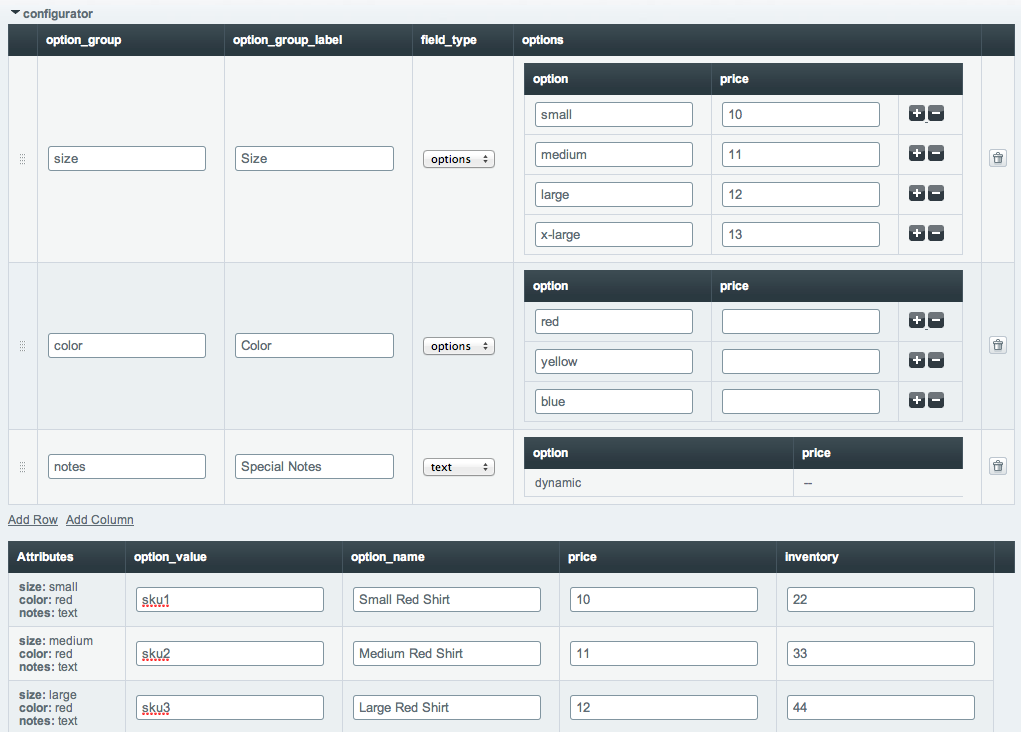
When creating an entry, this is what the Configurator looks like:
The configuration: option names
Each customer-facing option group submits under a generated name that starts
with configuration:. That prefix tells CartThrob these inputs belong to one
Configurator field and must resolve together to a single generated combination
row. It is not the Configurator field’s short name by itself.
Pattern:
configuration:CONFIGURATOR_FIELD_SHORT_NAME:OPTION_GROUP_SHORT_NAME
For example, a Configurator field named price_modifier_configurator with
Color and Size groups submits:
item_options[configuration:price_modifier_configurator:color]
item_options[configuration:price_modifier_configurator:size]
Do not submit every Color or Size value in one input. Each generated select
must submit only the customer’s selected option_value.
Product form: output all Configurator groups
Use item_options inside the product’s
add_to_cart_form. It discovers the generated Configurator group names and
builds correctly named controls, so templates do not need to hard-code the
configuration:... keys.
{exp:cartthrob:add_to_cart_form entry_id="{entry_id}"}
    {exp:cartthrob:item_options entry_id="{entry_id}"}
        {if options_exist}
            <label>{option_label}</label>
            {select}
                <option {selected} value="{option_value}">
                    {option_name}
                    {if option_price_numeric != 0} ({option_price}){/if}
                </option>
            {/select}
        {if:else}
            <label>{option_label}</label>
            {input}
        {/if}
    {/exp:cartthrob:item_options}

    <button type="submit">Add to cart</button>
{/exp:cartthrob:add_to_cart_form}
For a Configurator, {inventory} is intentionally blank in these individual
Color and Size option loops. Inventory belongs to the resolved complete
combination. CartThrob validates that combination when it is added or updated.
Cart: display the selected groups
Inside cart_items_info, pass the cart item’s row_id to item_options.
search:selected="yes" limits selectable groups to the choice stored on that
cart row:
{exp:cartthrob:cart_items_info}
    <h3>{title}</h3>

    {exp:cartthrob:item_options row_id="{row_id}" search:selected="yes"}
        <p>
            <strong>{option_label}:</strong>
            {if options_exist}
                {options}{option_name}{/options}
            {if:else}
                {option_value}
            {/if}
        </p>
    {/exp:cartthrob:item_options}
{/exp:cartthrob:cart_items_info}
When the generated names are known, the raw selected values are also available
directly in cart_items_info, for example:
{item_options:configuration:price_modifier_configurator:color}
{item_options:configuration:price_modifier_configurator:size}
The item_options tag is preferable when templates must work with different
Configurator field or group short names.
Saved order or invoice: display the purchased selections
Use the item_options pair inside
order_items. Configurator
groups include a sub_label such as Color or Size. Prefer it when present;
ordinary options use option_label.
{exp:cartthrob:order_items order_id="{order_id}"}
    <h3>{title}</h3>
    {item_options}
        <p>
            <strong>
                {if sub_label}{sub_label}{if:else}{option_label}{/if}:
            </strong>
            {option_name}
        </p>
    {/item_options}
{/exp:cartthrob:order_items}
See the complete item_options tag reference
for filtering, cart-update controls, option variables, and text inputs.