General Global Settings
This page controls store-wide CartThrob behavior, including checkout access, debugging, logging, number formatting, default customer location, locales, and multi-site behavior.
General Global Settings has these tabs:
- General
- Number Format Defaults
- Default Location
- Locales
- Multi Site Manager
General Tab
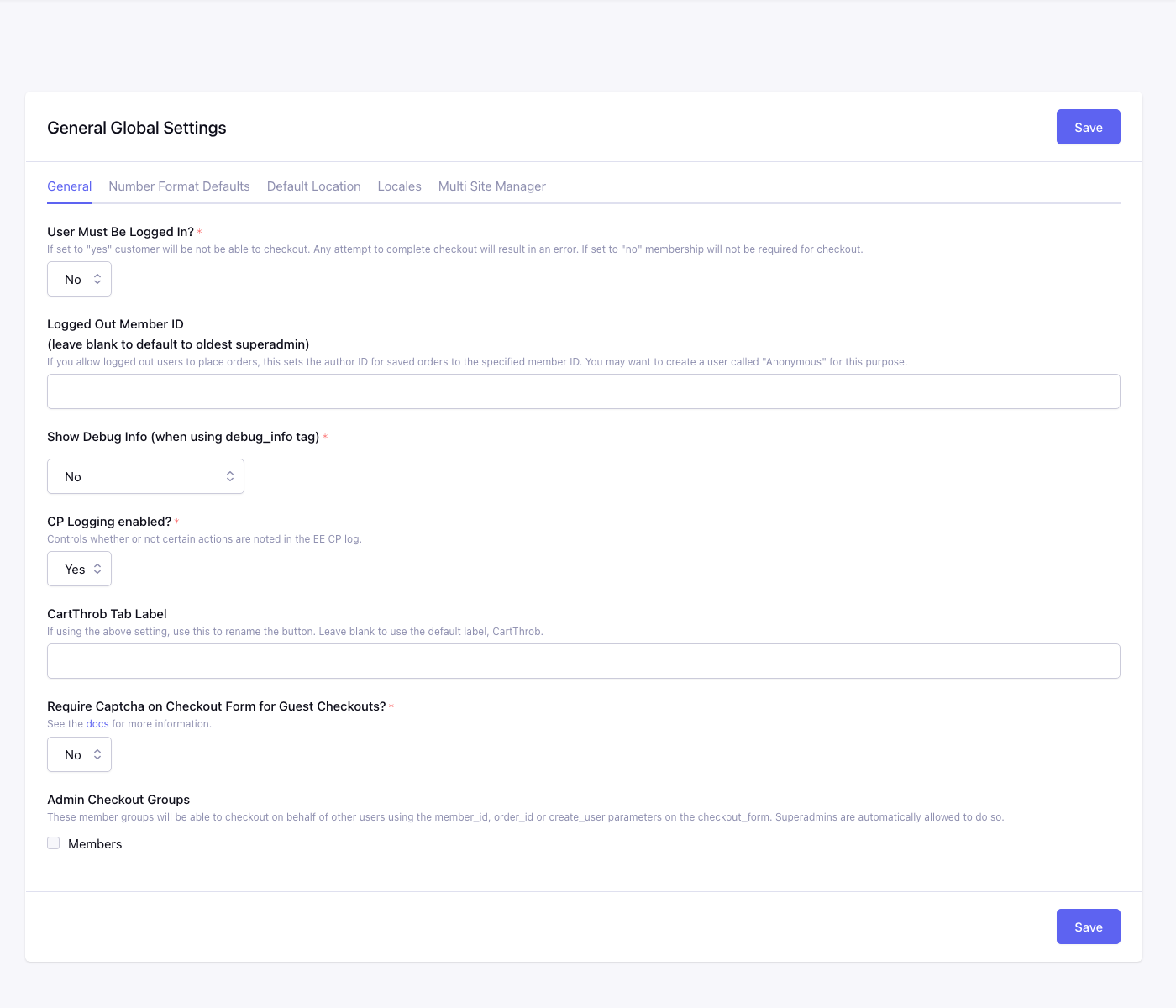
Control panel location: CartThrob > General Global Settings > General
The General tab controls the checkout requirements and control panel behavior that apply across the store.
User Must Be Logged In?*
Controls whether customers must be logged in before they can complete checkout.
Choose Yes to require member login before checkout. Choose No to allow guest checkout.
Logged Out Member ID
Sets the member ID used as the author for saved orders when a logged-out customer checks out.
Leave it blank to use the oldest Super Admin member. If you allow guest checkout, you may want to create a dedicated member account for guest orders.
Show Debug Info*
Controls whether CartThrob debug output can be shown when using the debug_info tag.
Available options are:
Yes- allow debug output.No- disable debug output.Show to SuperAdmins only- restrict debug output to Super Admin users.
CP Logging Enabled?*
Controls whether CartThrob records selected actions in the ExpressionEngine control panel log.
Choose Yes while troubleshooting or auditing store behavior. Choose No if you do not want CartThrob writing these log entries.
CartThrob Tab Label
Renames the CartThrob item in the ExpressionEngine control panel menu.
Leave it blank to use the default CartThrob label.
Require Captcha on Checkout Form for Guest Checkouts?*
Controls whether guest checkout forms require CAPTCHA validation.
Choose Yes to require ExpressionEngine’s local image CAPTCHA for
logged-out customers. Choose No to leave guest checkout forms without
a CAPTCHA challenge.
Before choosing Yes, configure EE’s CAPTCHA path and URL, verify that
the directory exists and is writable by PHP, and enable the PHP GD
extension. EE reCAPTCHA v3 must be off; CartThrob checkout currently
validates EE’s local word-and-IP CAPTCHA instead. EE’s global
Require CAPTCHA? setting may remain off because CartThrob applies
its checkout setting independently.
CartThrob refuses to save this setting as enabled when those local-image requirements are unavailable. If the environment later becomes unavailable, guest checkout fails closed instead of silently bypassing CAPTCHA.
Your checkout template must also render the
{if captcha} block.
Enabling this setting does not modify existing custom templates.
Admin Checkout Groups
Selects the member groups that can check out on behalf of another user with the member_id, order_id, or create_user parameters on checkout_form.
Super Admins can always do this. The available options are the member groups in the site.
Number Format Defaults Tab
Control panel location: CartThrob > General Global Settings > Number Format Defaults
The Number Format Defaults tab sets how CartThrob formats prices and other numbers when a tag or template does not override formatting directly.
Numbers should still be entered in English notation, such as 1200.00. These settings affect output formatting.
Decimal Precision
Display decimal places (usually 2; use 0 for whole-number currencies).
Decimal Point / Thousands Separator
Display separators. Input prices still use . as the decimal separator regardless of these settings.
Number Prefix / Prefix Position* / Currency Code*
How formatted prices appear (e.g. $10.00 vs 10.00 USD). Currency code is the three-letter ISO code (USD, EUR, etc.).
Round Decimals to Nearest* / Nearest Value
Rounding beyond decimal precision. Nearest Value is required only when Round to Nearest Value is selected (e.g. 0.10 rounds to dime increments).
Default Location Tab
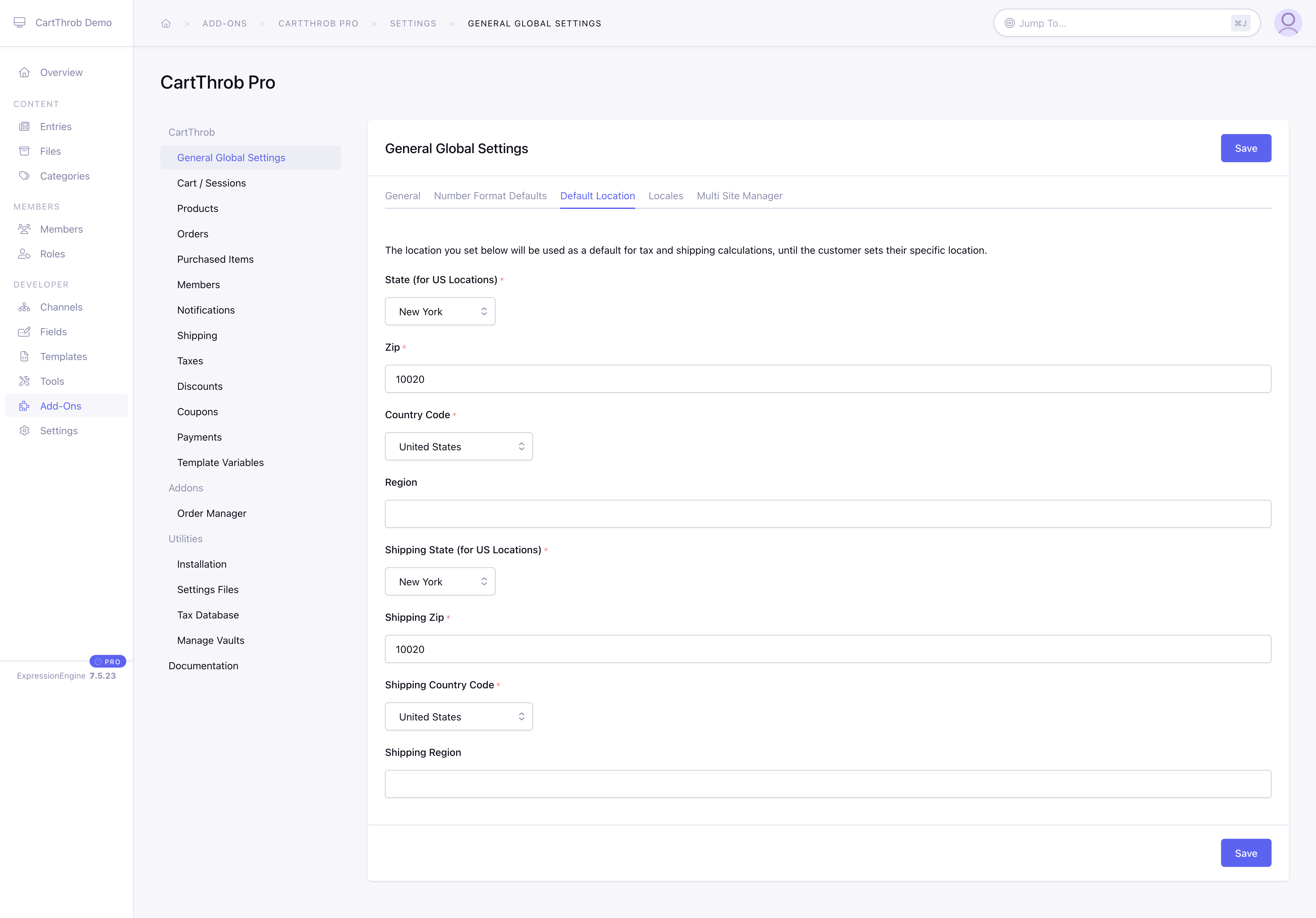
Fallback billing and shipping location until the customer provides an address. Used for tax and shipping when location is unknown. Fields marked * are required.
Billing: State*, Zip*, Country Code*, Region
Shipping: Shipping State*, Shipping Zip*, Shipping Country Code*, Shipping Region
Use two-letter ISO country codes such as US, CA, and GB for the billing and shipping country-code fields. This is CartThrob’s preferred format and matches the values generated by its country fields. CartThrob 10 also recognizes equivalent three-letter codes such as USA, CAN, and GBR when bundled location-based shipping plugins compare country-code fields, so existing shipping configurations remain compatible.
Locales Tab
Control panel location: CartThrob > General Global Settings > Locales
The Locales tab controls which countries appear in CartThrob country selection menus.
Countries
Limits {country_select} / {state_select} choices. None selected = all countries allowed.
Multi Site Manager Tab
Control panel location: CartThrob > General Global Settings > Multi Site Manager
The Multi Site Manager tab controls whether this site’s CartThrob settings can reference order and product channels from other ExpressionEngine sites.
Multi-Site Manager: Show All Order/Product Channels From MSM Sites*
Controls whether CartThrob shows channels from all MSM sites in this site’s CartThrob configuration screens.
Choose Yes if this site needs to configure product channels from another MSM site, or save orders and purchased items to another MSM site. Choose No to keep channel choices scoped to the current site.
Order Manager reports need to be run on the site where orders are saved.