Order Manager Settings
Order Manager Settings connects ExpressionEngine templates to printable order documents, custom order output, email actions, and dashboard reports.
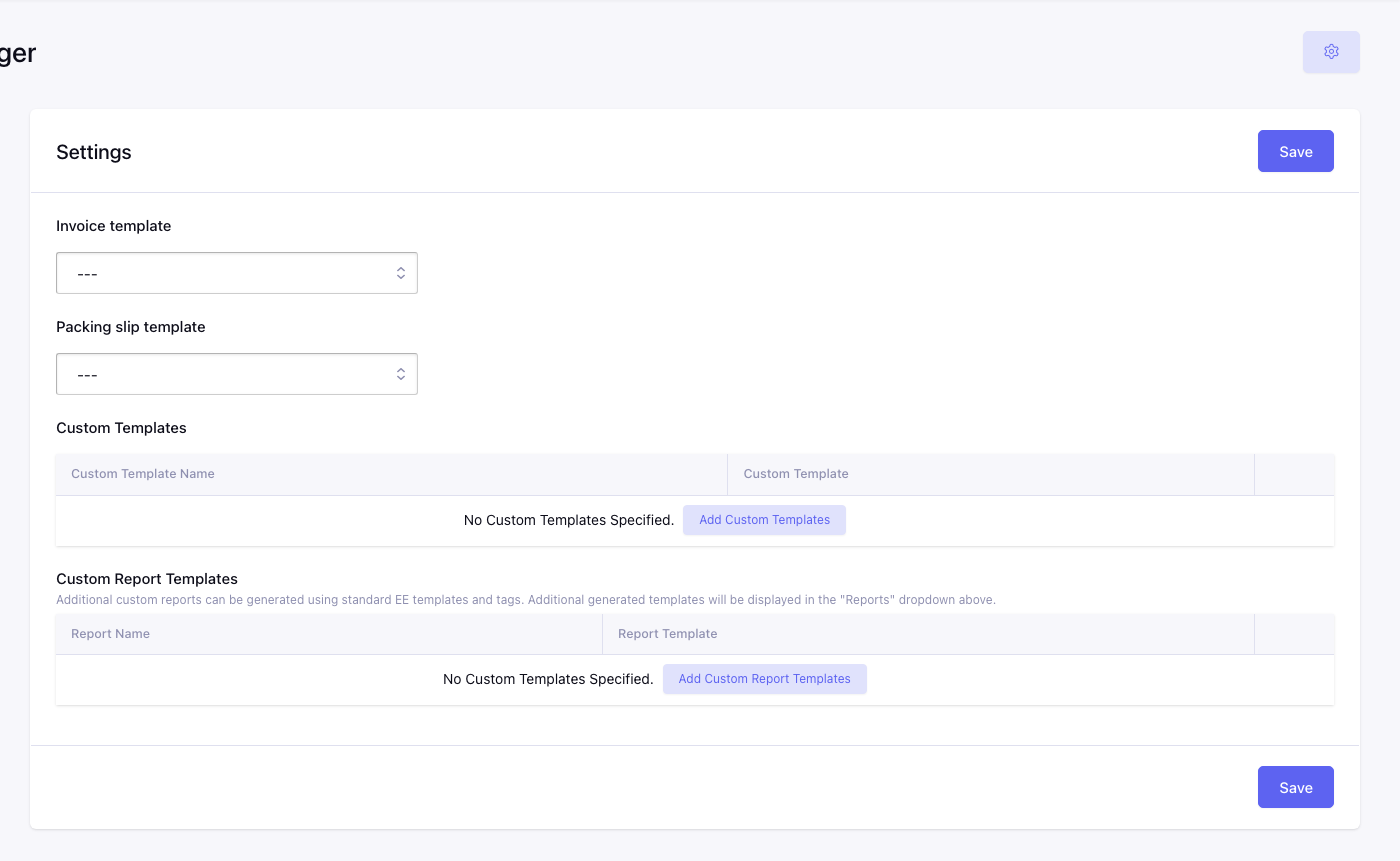
Every selector lists templates available to the current ExpressionEngine site. Order Manager never edits the selected template. It parses the template when the corresponding action is used.
Install the CartThrob demo templates
The main CartThrob add-on can automatically install working examples for every Order Manager template setting. Order Manager ships with CartThrob, but the templates are installed from CartThrob:
- Open CartThrob → Installation.
- Select the Store sample template group.
- Run the template installation.
- Return to Order Manager → Settings.
- Select the templates listed below and save.
| Setting | Demo name | Installed template |
|---|---|---|
| Invoice Template | CartThrob invoice | store/invoice |
| Packing Slip Template | CartThrob packing slip | store/packing_slip |
| Custom Templates | Order summary | store/order_summary |
| Custom Report Templates | Order Manager Report | store/order_manager_report |
The installer creates the complete store template group. If a store group
already exists, ExpressionEngine will not overwrite it. Copy the examples from
this page into new templates or add the new template files manually on an
existing site.
The samples use the channel and field short names created by CartThrob’s demo
installer. On another site, replace orders, order_items, and each
order_* field with the short names configured under CartThrob’s order
settings.
Invoice Template
Selecting a template adds Print Invoice to the Order detail page.
Recommended demo: store/invoice
Order Manager injects these variables before parsing:
| Variable | Description |
|---|---|
{entry_id} |
ExpressionEngine entry ID of the selected saved order. |
{order_id} |
Same as {entry_id}. Not the invoice ID contained in the title. |
Standard ExpressionEngine global variables remain available. To access the
order’s title, date, customer fields, totals, and purchased items, load the
configured orders channel with entry_id="{entry_id}".
The demo store/invoice also supports CartThrob’s encrypted front-end invoice
URL. When Order Manager opens it, the template follows its direct
{entry_id} path.
Packing Slip Template
Selecting a template adds Print Packing Slip to the Order detail page.
Recommended demo: store/packing_slip
It receives the same two direct variables:
| Variable | Description |
|---|---|
{entry_id} |
ExpressionEngine entry ID of the selected saved order. |
{order_id} |
Same as {entry_id}. Not the invoice ID contained in the title. |
The packing slip should load the saved order and output the purchased item’s saved options. Reading the product entry’s current modifier values does not reliably describe a historical purchase.
Custom Templates
The Custom Templates grid adds named order-specific actions.
| Column | Purpose |
|---|---|
| Custom Template Name | Label used for the print button, email section, and default email subject. |
| Custom Template | ExpressionEngine template parsed for the selected order. |
Recommended demo row:
| Custom Template Name | Custom Template |
|---|---|
| Order summary | store/order_summary |
Printing a custom template injects:
| Variable | Description |
|---|---|
{entry_id} |
ExpressionEngine entry ID of the selected saved order. |
{order_id} |
Same as {entry_id}. Not the invoice ID contained in the title. |
The same template can be emailed from the Order detail page. Emailing requires at least one completed-order email notification in CartThrob. Order Manager uses that notification’s sender and email type, replaces its body with the selected custom template, and uses the recipient and subject entered on the Order detail page.
During email parsing, the template also receives the saved order data. Because order field short names are configurable, that set contains every field loaded from the site’s order entry. These stable aliases are also available:
| Variable | Description |
|---|---|
{entry_id} and {order_id} |
ExpressionEngine entry ID. Not the invoice ID contained in the title. |
{shipping} |
Saved shipping amount. |
{shipping_plus_tax} |
Saved shipping amount including tax. |
{tax} |
Saved tax amount. |
{subtotal} |
Saved subtotal. |
{subtotal_plus_tax} |
Saved subtotal including tax. |
{discount} |
Saved discount. |
{total} |
Saved order total. |
{authorized} |
true for the reconstructed completed order. |
{transaction_id} |
Saved gateway transaction ID. |
{payment_gateway} |
Gateway identifier used by the order. |
For one template that behaves identically when printed and emailed, use
{entry_id} in a channel:entries tag as shown in the examples below.
Custom Report Templates
The Custom Report Templates grid adds named templates to the Dashboard’s Report selector.
| Column | Purpose |
|---|---|
| Report Name | Label displayed in the Dashboard selector. |
| Report Template | ExpressionEngine template rendered inside Order Manager. |
Recommended demo row:
| Report Name | Report Template |
|---|---|
| Order Manager Report | store/order_manager_report |
Custom reports do not receive {entry_id} or another Order Manager-specific
variable because they are not tied to one order. They receive normal
ExpressionEngine global variables and can run standard ExpressionEngine and
CartThrob tags.
The optional order_totals tag exposes these variables:
| Variable | Description |
|---|---|
{total} |
Sum of saved order totals. |
{subtotal} |
Sum of saved order subtotals. |
{tax} |
Sum of saved order tax. |
{shipping} |
Sum of saved shipping. |
{discount} |
Sum of saved discounts. |
{count} |
Number of saved order entries. |
order_totals currently follows ExpressionEngine’s default entry-status
selection and does not accept filtering parameters. Sites that save orders
under custom statuses may therefore receive zero totals. The installed demo
report uses order_items as its reliable baseline. Each purchased-item row
provides:
| Variable | Description |
|---|---|
{item:entry_id} |
Purchased product entry ID. |
{item:order_id} |
Saved order entry ID. |
{item:row_id} |
Purchased-item row ID. |
{item:title} |
Saved item title. |
{item:quantity} |
Purchased quantity. |
{item:price} / {item:price_numeric} |
Formatted and raw unit price. |
{item:price_plus_tax} / {item:price_plus_tax_numeric} |
Formatted and raw unit price including tax. |
{item:subtotal} / {item:subtotal_numeric} |
Formatted and raw row subtotal. |
{item:subtotal_plus_tax} / {item:subtotal_plus_tax_numeric} |
Formatted and raw row subtotal including tax. |
{item:count} |
Current result row number. |
{item:total_results} |
Number of purchased-item rows. |
{item:switch="odd|even"} |
Alternates between supplied values. |
Saved custom item options can also be addressed by their option short name.
The {item_options} pair makes templates independent of those names:
| Variable | Description |
|---|---|
{option_label} |
Product field or modifier group label. |
{configuration_label} |
Configurator subgroup label, such as Color or Size. |
{sub_label} |
Alias of the configurator subgroup label. |
{option_name} |
Human-readable selected option. |
{option_value} |
Stored option value. |
{option_price} |
Option price adjustment when available. |
{dynamic} |
Whether the option was submitted dynamically rather than resolved from a configured modifier. |
The installed examples display rows where {dynamic} is false, which keeps
configured product and configurator selections while omitting CartThrob’s
internal saved-item metadata. Remove that conditional when the template should
also display intentionally submitted dynamic options.
Custom reports differ from saved Order Reports:
- a custom report executes an ExpressionEngine template; and
- a saved Order Report stores criteria selected in Order Manager.
Non-Super-Admin users must have permission to access the selected template.
Example templates
These examples are intentionally compact. They are viable starting points and show the parsing contract for each setting.
Invoice Template example
Select this template as Invoice Template:
{exp:channel:entries
    channel="orders"
    entry_id="{entry_id}"
    dynamic="no"
    limit="1"
    status="not none"
    show_future_entries="yes"
}
    {if no_results}<p>Order not found.</p>{/if}

    <h1>Invoice: {title}</h1>
    <p>Order date: {entry_date format="%F %j, %Y"}</p>
    <p>
        Bill to:<br>
        {order_billing_first_name} {order_billing_last_name}<br>
        {order_billing_address}<br>
        {order_billing_city}, {order_billing_state} {order_billing_zip}
    </p>

    <table>
        <thead>
            <tr><th>Item</th><th>Qty</th><th>Price</th><th>Subtotal</th></tr>
        </thead>
        <tbody>
            {exp:cartthrob:order_items order_id="{entry_id}"}
                <tr>
                    <td>
                        {item:title}
                        {item_options}
                            {if dynamic}
                            {if:else}
                                {if configuration_label}
                                    <br>{configuration_label}: {option_name}
                                {if:else}
                                    <br>{option_label}: {option_name}
                                {/if}
                            {/if}
                        {/item_options}
                    </td>
                    <td>{item:quantity}</td>
                    <td>{item:price}</td>
                    <td>{item:subtotal}</td>
                </tr>
            {/exp:cartthrob:order_items}
        </tbody>
    </table>

    <p>
        Subtotal: {order_subtotal}<br>
        Shipping: {order_shipping}<br>
        Tax: {order_tax}<br>
        <strong>Total: {order_total}</strong>
    </p>
{/exp:channel:entries}
Packing Slip Template example
Select this template as Packing Slip Template:
{exp:channel:entries
    channel="orders"
    entry_id="{entry_id}"
    dynamic="no"
    limit="1"
    status="not none"
    show_future_entries="yes"
}
    {if no_results}<p>Order not found.</p>{/if}

    <h1>Packing slip: {title}</h1>
    <p>
        Ship to:<br>
        {order_shipping_first_name} {order_shipping_last_name}<br>
        {order_shipping_address}<br>
        {order_shipping_city}, {order_shipping_state} {order_shipping_zip}
    </p>

    <table>
        <thead>
            <tr><th>Item</th><th>Quantity</th></tr>
        </thead>
        <tbody>
            {exp:cartthrob:order_items order_id="{entry_id}"}
                <tr>
                    <td>
                        {item:title}
                        {item_options}
                            {if dynamic}
                            {if:else}
                                {if configuration_label}
                                    <br>{configuration_label}: {option_name}
                                {if:else}
                                    <br>{option_label}: {option_name}
                                {/if}
                            {/if}
                        {/item_options}
                    </td>
                    <td>{item:quantity}</td>
                </tr>
            {/exp:cartthrob:order_items}
        </tbody>
    </table>
{/exp:channel:entries}
Custom Template example
Add a Custom Templates row and select this template:
{exp:channel:entries
    channel="orders"
    entry_id="{entry_id}"
    dynamic="no"
    limit="1"
    status="not none"
    show_future_entries="yes"
}
    {if no_results}<p>Order not found.</p>{/if}

    <h1>Order summary: {title}</h1>
    <p>{order_billing_first_name} {order_billing_last_name}</p>

    {exp:cartthrob:order_items order_id="{entry_id}"}
        <p>
            {item:title} × {item:quantity}: {item:subtotal}
            {item_options}
                {if dynamic}
                {if:else}
                    {if configuration_label}
                        <br>{configuration_label}: {option_name}
                    {if:else}
                        <br>{option_label}: {option_name}
                    {/if}
                {/if}
            {/item_options}
        </p>
    {/exp:cartthrob:order_items}

    <p><strong>Total: {order_total}</strong></p>
{/exp:channel:entries}
Custom Report Template example
Add a Custom Report Templates row and select this template:
<h2>Order Manager Report</h2>

<table>
    <thead>
        <tr><th>Order</th><th>Item</th><th>Qty</th><th>Subtotal</th></tr>
    </thead>
    <tbody>
        {exp:cartthrob:order_items}
            <tr>
                <td>{item:order_id}</td>
                <td>
                    {item:title}
                    {item_options}
                        {if dynamic}
                        {if:else}
                            {if configuration_label}
                                <br>{configuration_label}: {option_name}
                            {if:else}
                                <br>{option_label}: {option_name}
                            {/if}
                        {/if}
                    {/item_options}
                </td>
                <td>{item:quantity}</td>
                <td>{item:subtotal}</td>
            </tr>
            {if no_results}
                <tr><td colspan="4">No purchased items were found.</td></tr>
            {/if}
        {/exp:cartthrob:order_items}
    </tbody>
</table>
Saving and testing
After changing Settings:
- Save the page.
- Open a known test order.
- Print the invoice and packing slip.
- Print the custom order summary.
- Email the custom summary to a safe test recipient.
- Confirm that order number, customer, totals, purchased items, and modifiers match the saved order.
- Return to the Dashboard, select Order Manager Report, and refresh.
- Test custom reports with a restricted control-panel role as well as a Super Admin.
Security
Order templates can expose customer and payment-related data. Restrict template and Order Manager access appropriately. Do not output full card numbers, credentials, gateway secrets, or data not required for fulfillment.