Using Price Modifiers and Product Options
Many site owners would like to give their customers the option to do something configure products; t-shirt colors and sizes, part upgrades, material types and more. These options might be no-cost options, or price altering options.
CartThrob has a system to help you add options to your products, and collect the customer’s option selection. We generally call these options “Price Modifiers”. Our price modifier system can be used to provide no-cost options, and options that increase or decrease costs as the need arises.
This system is comprised of two parts. 1. “CartThrob Price Modifiers” custom channel field and 2. Template tags for outputting the options and collecting customer selections. Though you may output your modifiers as checkboxes, radio buttons, select boxes or whatever you’d like, at a minimum you need to set an option value. If your option has an associated cost, you’ll also need a price field. The CartThrob Price Modifiers custom channel field allows you to capture the following:
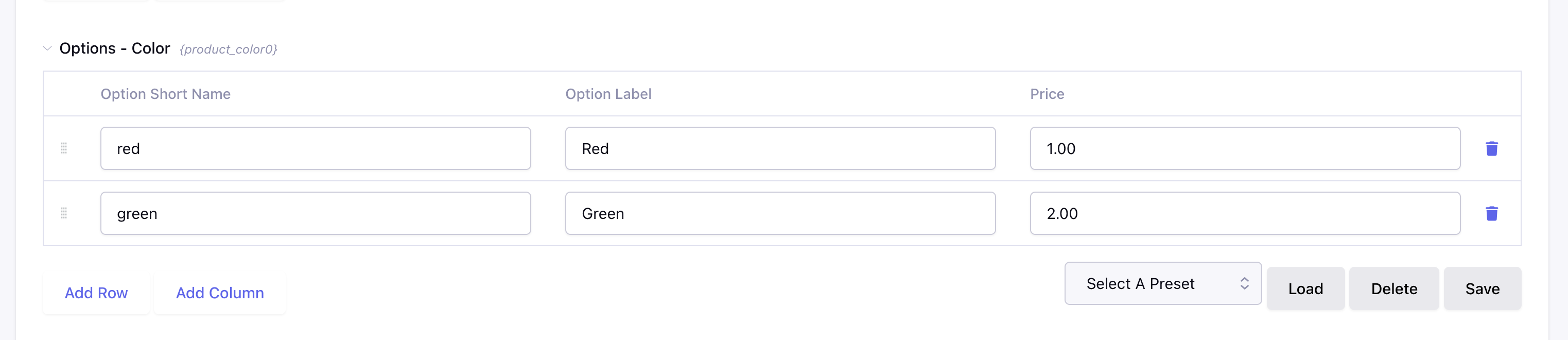
option_valueThis is the option value. The value here is the associate sku, or product code, or just a simple name that you’ll use later to fulfill orders (ex. blue, large, ba_skel)price This is the price of the option. If a base price is set for your product, this price will be added to it.
option_name(Optional) This is a plain text description of the value. If the option’s value is a gibberish sku that would make no sense to a customer you could add a description here.inventory (Optional) Your field must be mapped in CartThrob’s product channel settings as the Inventory field. CartThrob then checks and reduces the selected option row when its inventory is an explicit numeric value. A missing inventory column,
null, a blank value, or no option rows on the entry means unlimited inventory. Once rows exist, an explicitly submitted selection must match a stored option. If the option field is omitted, CartThrob records no selection or price adjustment from that field. With no options selected, the item uses the product’s base price. Useadd_to_cart_form’srequiredparameter when the customer must choose one value from this field. A channel has one Inventory mapping, so a separate product-wide inventory field and other modifier fields are not reduced at the same time.
Configuring the Channel
Using the “CartThrob Price Modifiers” custom channel field
The conventional method of adding price modifiers to the ExpressionEngine backend is pretty straightforward.
Add a custom channel field to your channel with the type “CartThrob Price Modifiers” Fig 1.
If you plan on using inventory, map this field as the inventory field in CartThrob’s settings > products > your channel > inventory field.
Begin adding data to your custom field. Fig 2.
Add template code to your site to output the options and gather info. See Example 1 template code below.
Use this fieldtype when one option field, such as Color, represents the stock you need to count. If stock belongs to a complete combination such as Size + Color, use the Price Modifiers Configurator fieldtype. The Configurator creates a separate inventory/SKU row for each generated combination.
Fig 1. Adding the field
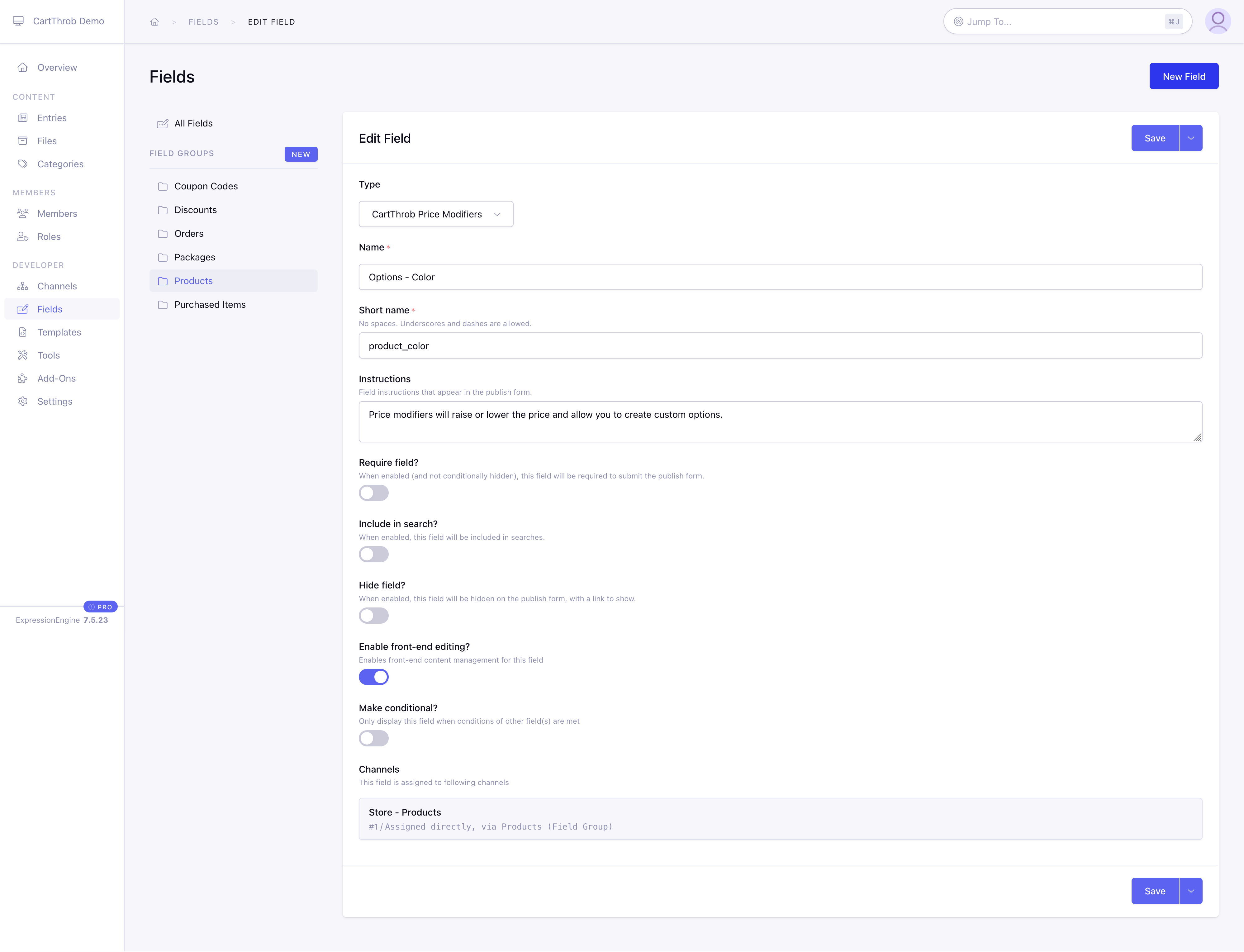
Fig 2. Adding options to your product
Creating a Template
The template you create to allow customers configure products should look something like one of the following
Example 1
{exp:channel:entries channel="products" url_title="{segment_3}"}

{exp:cartthrob:add_to_cart_form entry_id="{entry_id}"}

{exp:cartthrob:item_options entry_id="{entry_id}" }
    {select}
        <option {selected} value="{option_value}">{option_name} {price}</option>
    {/select}
 {/exp:cartthrob:item_options}

{/exp:cartthrob:add_to_cart_form}

{/exp:channel:entries}
This example shows you how to use CartThrob functionality to manipulate prices and options. The standard method above uses prices set within a channel to calculate prices and totals based on user input. For more information about the various methods used to output price modifier options in templates, review the following Add to Cart Form tag.
Also, please note: there is also a less secure method allows you to completely ignore this process, manipulate and calculate prices directly within your templates. It’s up to you to decide if you’d like to sacrifice some security for more flexibility.