Order Detail
Order detail is the working page for one saved order. It combines financial data, purchased items, customer addresses, fulfillment controls, email actions, and gateway-specific payment actions.
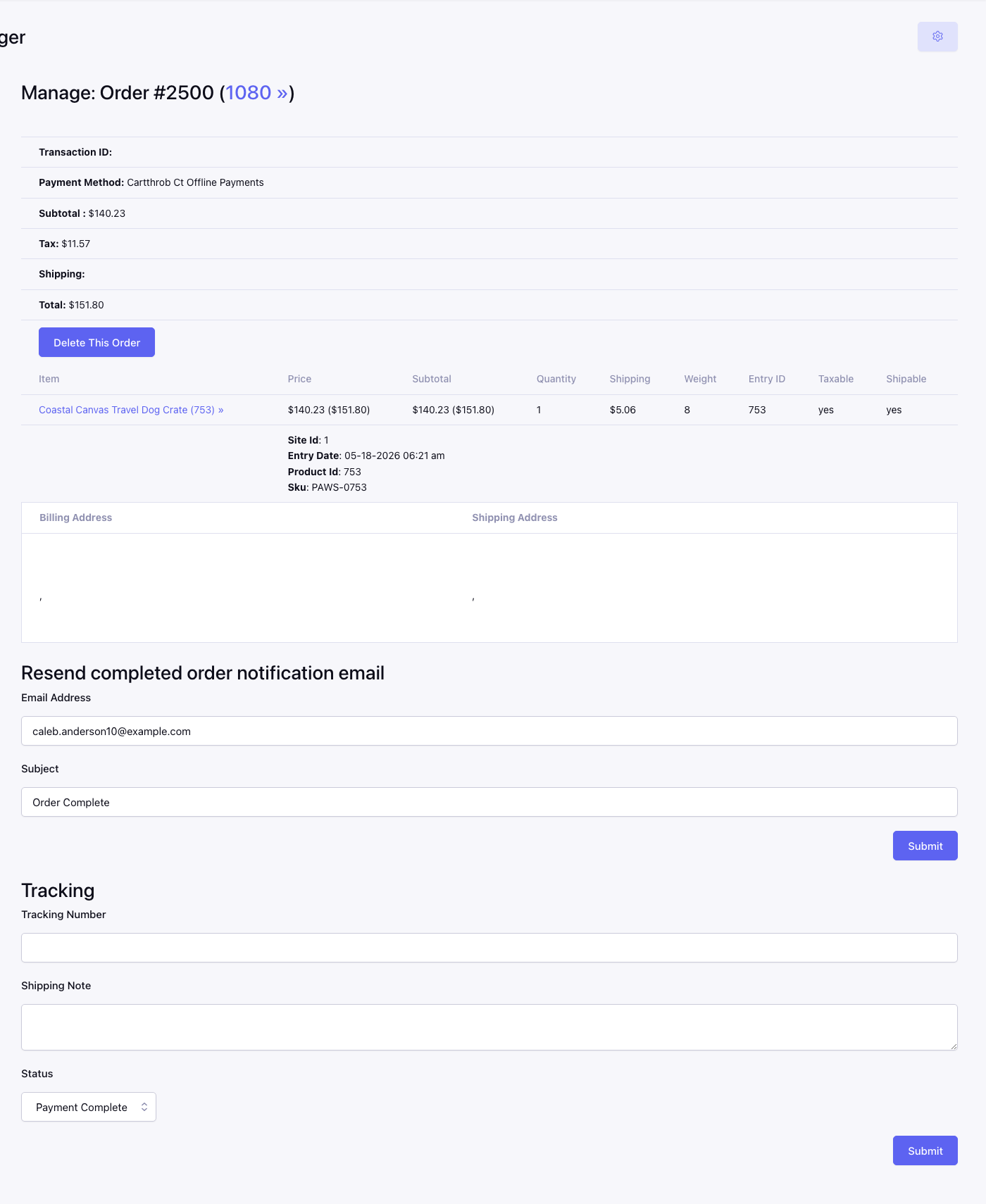
Order summary
The heading identifies the customer-facing order number and the underlying ExpressionEngine order entry. The summary shows:
- transaction ID;
- payment gateway;
- subtotal;
- tax;
- shipping; and
- total.
The order entry link opens the underlying ExpressionEngine channel entry for administrative editing. Changing an entry directly can affect values CartThrob reads later, so use the normal Order Manager workflow whenever possible.
Payments requiring reconciliation
With CartThrob 10 payment reconciliation, an affected order displays Payment needs review or Payment outcome unknown. The notice shows the reason, provider reference/state, collected amount when confirmed, expected amount when available, and a link to CartThrob’s Payment reconciliation page. The order list also labels these orders.
Capture, void, and refund controls are unavailable while the incident is unresolved; payment-action endpoints also enforce the hold. Verify the original payment with Stripe or PayPal before taking payment action or fulfilling the order. If the reconciliation records cannot be read, payment actions remain blocked until that information is available.
On the reconciliation page, select an outcome and enter a resolution note. Use Complete paid order — no charge for an eligible verified payment you accept for fulfillment. Use Mark reconciled for a refunded, unpaid, or manually handled outcome; that action records follow-up only. Ordinary offline Processing orders are not subject to this special incident hold.
The new automatic incidents come from supported Stripe Payments and PayPal paths. Authorize.Net does not currently create the required recovery evidence. See gateway coverage before assuming an order can use this workflow.
Purchased items
The item table may include:
| Column | Description |
|---|---|
| Item | Purchased product title and product-entry link. |
| Price | Unit price, with tax-inclusive output where available. |
| Subtotal | Line subtotal for the saved quantity. |
| Quantity | Quantity purchased. |
| Shipping | Shipping amount associated with the item. |
| Weight | Saved item weight. |
| Entry ID | Original product entry ID. |
| Taxable | Whether the item was taxable when the order was saved. |
| Shippable | Whether the item required shipping when the order was saved. |
Additional rows show saved item metadata, packages, and selected product options. Modifier selections should be read from the purchased item data rather than the product’s current entry values.
Line items versus Purchased Item channel entries
The table above shows saved order line items. Their presence does not prove that CartThrob created the separate Purchased Item channel entries used by some download, license, and reporting setups.
With CartThrob 10 payment reconciliation:
| Checkout outcome | New Purchased Item channel entries | Checkout notification |
|---|---|---|
| Ordinary Processing, including Offline Payments | Created when Save Orders and Save Purchased Items are enabled and configured; Processing status mapping applies. | Configured Processing notifications. |
| Confirmed or unknown payment-review hold | Withheld; available order line items remain for review. Existing Purchased Item entries on an incomplete held order are set to closed. | Configured Processing notifications, including payment_review and payment_review_kind; no Completed event for the hold. |
| Mark reconciled | No entries created or released. | No Processing or Completed event dispatched by this action. |
| Complete paid order — no charge | Creates missing configured entries or reuses known entries while completing an eligible accepted payment. | Configured Completed notifications after supported local completion steps. |
A later failure after an order was already authorized/completed does not undo its entries or other checkout effects. Inspect that order before attempting recovery. Closing an existing Purchased Item entry also does not revoke every previously issued download link or control custom download templates.
With paid-order completion, Complete paid order — no charge creates missing configured Purchased Item entries and runs supported local completion after the merchant explicitly accepts the verified payment. Mark reconciled, an EE status edit, and resending a receipt still do not perform that work. Do not use Capture for money the provider already collected.
The order displays the recorded merchant outcome, accepted amount/currency, reference, note, member ID, and time. Accepting an adjustment preserves the original order figures rather than recalculating prices, tax, or shipping. Adjusted, refunded, not-collected, and manually handled resolutions retain provider-only capture/void/refund actions even after reconciliation. An accepted payment without an adjustment returns to ordinary payment-action rules.
Completion is available for preserved ordinary checkout contexts. Account creation, subscriptions, unavailable historical data, and uncertain partial completion require manual handling. An interrupted completion remains visible with its last step so purchase entries, stock deductions, or emails are not blindly repeated.
Billing and shipping addresses
The address table displays the customer data persisted with the order. If the order belongs to a member, available member links open that member’s profile. Guest and historical orders may have empty optional fields.
Print actions
When configured, the top of the page includes:
- Print Invoice;
- Print Packing Slip; and
- named custom print actions.
Order Manager passes the order entry ID to the selected ExpressionEngine
template as {entry_id}. Configuration and examples are documented under
Settings.
Resend completed-order email
This form resends CartThrob’s completed-order notification:
| Field | Purpose |
|---|---|
| Email Address | Overrides the recipient for this send. |
| Subject | Overrides the subject for this send. |
| Order ID | Hidden value identifying the order. |
The message body and sender settings come from CartThrob’s completed-order notification. The form does not create a separate Order Manager notification. Do not resend a completed-order receipt to resolve a payment-review notice; verify and handle the payment first.
Tracking
Use the tracking form to save fulfillment information:
| Field | Purpose |
|---|---|
| Tracking Number | Saves to the order field with short name order_tracking_number. |
| Shipping Note | Saves to order_shipping_note. |
| Status | Applies the selected order status with the tracking update. |
If either mapped field is missing from the orders channel, Order Manager cannot persist that value. Add the field to the orders channel before depending on the workflow.
Tracking updates can participate in the Order Manager tracking/status notification flow. Test the configured notification recipients and content before using it for customer communication.
Capture and void
Capture and void controls are conditional. They generally appear only when:
- the selected gateway implements the action;
- the order has a usable transaction ID; and
- the order is in an appropriate authorization state.
Submitting a capture or void sends the request to the configured gateway. An order status or button alone is not proof that the remote processor accepted the operation; review the returned message and processor record.
Refunds
Refund controls are also gateway-specific. A gateway may support a full refund, a partial refund, additional required fields, or no Order Manager refund at all.
For a partial refund, the form can collect separate subtotal, tax, and shipping amounts. The combined amount cannot safely exceed the captured order amount.
PayPal Standard and PayPal Advanced refunds must currently be completed through PayPal. Order Manager returns an actionable message for those gateways instead of attempting an unsupported or unreliable refund.
Deleting an order does not refund it. Likewise, refunding a processor transaction does not by itself delete the ExpressionEngine order entry.
Delete order
Delete This Order opens a confirmation screen. Confirming permanently removes the order record handled by Order Manager. Verify refund, accounting, and retention requirements before deletion.