Hard Coding Price Modifiers and Product Options
Many site owners would like to give their customers the option to configure products; t-shirt colors and sizes, part upgrades, material types and more. These options might be no-cost options, or price altering options. Though CartThrob offers a method to add product options and price modifiers via a product channel, you might prefer to hard code options and price modifiers. Perhaps, you have 100 products all with the same modifiers and options, or you only have a few products and don’t feel like setting up a product channel, what’s certain is you just want to hard code this information into your templates.
CartThrob offers you the ability to hard code information into your
templates, or mix channel and hard coded data depending on your needs.
The item_option variable is available in the Add to Cart
Form that will allow you
to create the configuration system that suits you best. Please see the
relevant tag
documentation for more
details on adding products to your cart.
Figures
Fig 1. Hardcoded options with a size-based price
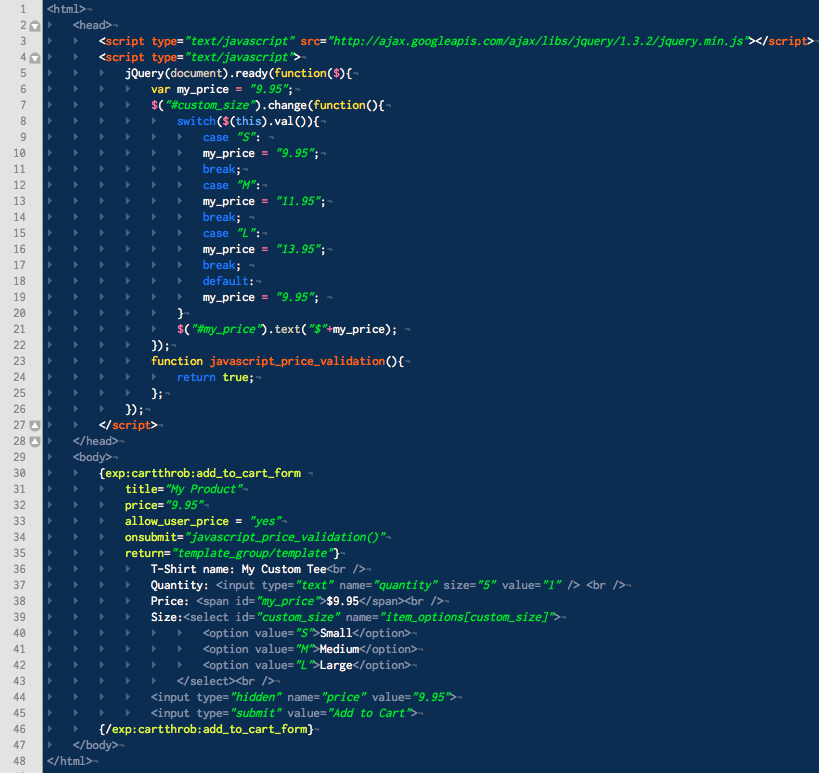
Fig 2. Default price of an option
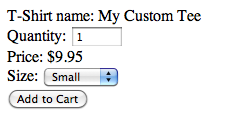
Fig 3. Menu adjustment is made
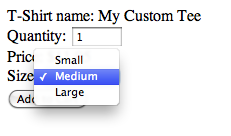
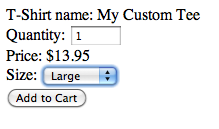
Fig 4. Final price is updated both in a hidden field, and in the
display to the customer
The sample lets the customer pick a shirt size and updates both the
visible price and the hidden price field. Because that field is
customer-controlled, allow_user_price="yes" is required or CartThrob
ignores it.
This is add-to-cart pricing. It does not replace checkout quotes or gateway JavaScript. See Custom checkout JavaScript.
{exp:cartthrob:add_to_cart_form
    title="My Product"
    price="9.95"
    allow_user_price="yes"
    return="cart/index"
    id="add-shirt-form"
}
    T-Shirt: My Custom Tee
    Price: <span id="shirt-price">$9.95</span>

    <label for="custom_size">Size</label>
    <select id="custom_size" name="item_options[custom_size]">
        <option value="S" data-price="9.95">Small</option>
        <option value="M" data-price="12.95">Medium</option>
        <option value="L" data-price="14.95">Large</option>
    </select>

    <input id="shirt-price-input" type="hidden" name="price" value="9.95">
    <button type="submit">Add to Cart</button>
{/exp:cartthrob:add_to_cart_form}

<script>
(() => {
    const select = document.getElementById('custom_size');
    const display = document.getElementById('shirt-price');
    const input = document.getElementById('shirt-price-input');

    if (!select || !display || !input) {
        return;
    }

    select.addEventListener('change', () => {
        const option = select.options[select.selectedIndex];
        const price = option.getAttribute('data-price');

        if (!price) {
            return;
        }

        input.value = price;
        display.textContent = '$' + price;
    });
})();
</script>
Using hardcoded data in your templates provides you with a lot of power and flexibility. You can mix these hardcoded scenarios with standard products as well, allowing you to create extremely complex one-off products, as well as to output database driven simple products within the same cart.