Order Report
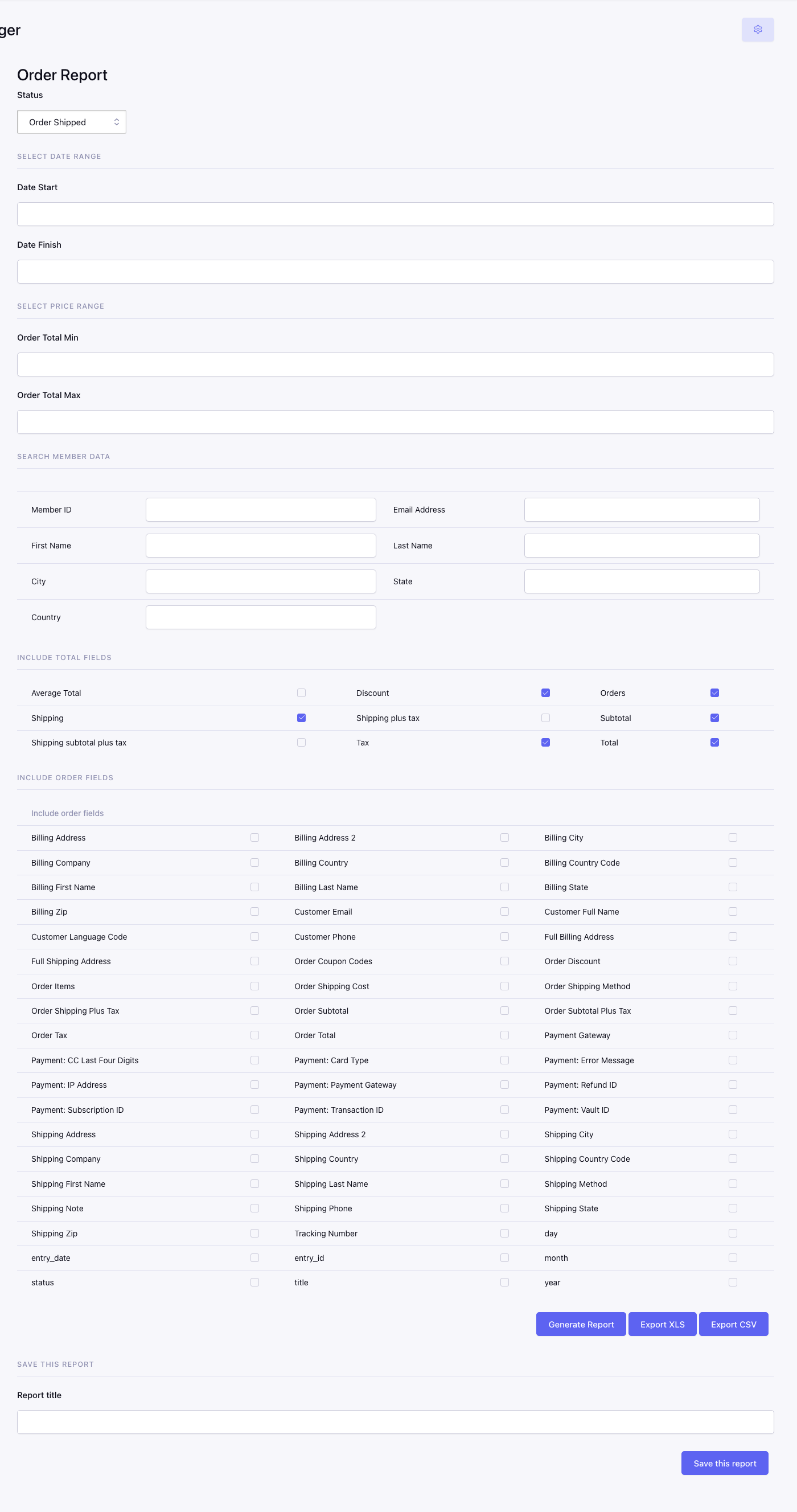
Order Report builds a detailed list of orders from saved ExpressionEngine order entries. Reports can be generated immediately, exported, or saved as reusable criteria.
Saved reports
The saved-report selector lists previously named report definitions.
- Choose a report and run it to query current order data using its saved criteria.
- Choose Remove to open the delete confirmation for the selected report.
A saved report is not a snapshot. Its results can change as orders are added, edited, refunded, or moved to different statuses.
Report criteria
Order filters
| Field | Description |
|---|---|
| Status | Includes any status or one specific ExpressionEngine order status. |
| Date Start | Inclusive beginning of the order-entry date range. |
| Date Finish | Inclusive end of the date range. |
| Total Minimum | Excludes orders below the entered total. |
| Total Maximum | Excludes orders above the entered total. |
Customer filters
Available criteria include:
- member/author ID;
- email address;
- first and last name;
- city;
- state; and
- country code.
These filters use values saved with the order. Guest orders and older orders can have blank optional customer fields.
Included totals
The totals checkboxes determine which aggregate rows appear. Depending on the installation, available values include:
- orders/count;
- subtotal;
- tax;
- shipping;
- discount;
- total;
- subtotal plus tax;
- shipping plus tax; and
- average total.
Included order fields
Order-field checkboxes determine the detail-table columns. They are generated from the fields associated with the configured orders channel, so the exact list varies by site.
Select only the fields needed by the report. Very wide reports become difficult to read in the browser and in spreadsheet exports.
Generate or export
- Generate Report renders the matching rows in Order Manager.
- Export CSV downloads the complete filtered result set as comma-separated data.
- Export XLS/XLSX downloads the complete result set as a spreadsheet.
Exports use the active report criteria and are not limited to the current visible pagination page.
Customer-supplied text is encoded defensively for spreadsheet use. Preserve equivalent protections if exported files are transformed by another system.
Save a report
Enter a report title and save the current configuration. Use a name that identifies the business purpose, such as:
Weekly completed orders;Pending orders over $500; orNorth Carolina fulfillment.
The saved configuration retains criteria and selected output fields. It does not save the generated values.
Results
The result view contains:
- an aggregate totals table based on the selected totals; and
- an order table based on the selected order fields.
Order IDs and titles open Order detail. Purchased item links can open the related product entry.
Custom template reports
Custom report templates are configured under Settings. They appear in the dashboard’s report selector and render the selected ExpressionEngine template. They are separate from saved Order Reports: saved reports store Order Manager criteria, while custom reports execute template code written for the site.