Orders
The Orders page lists saved CartThrob orders and provides the fastest route to individual order management.
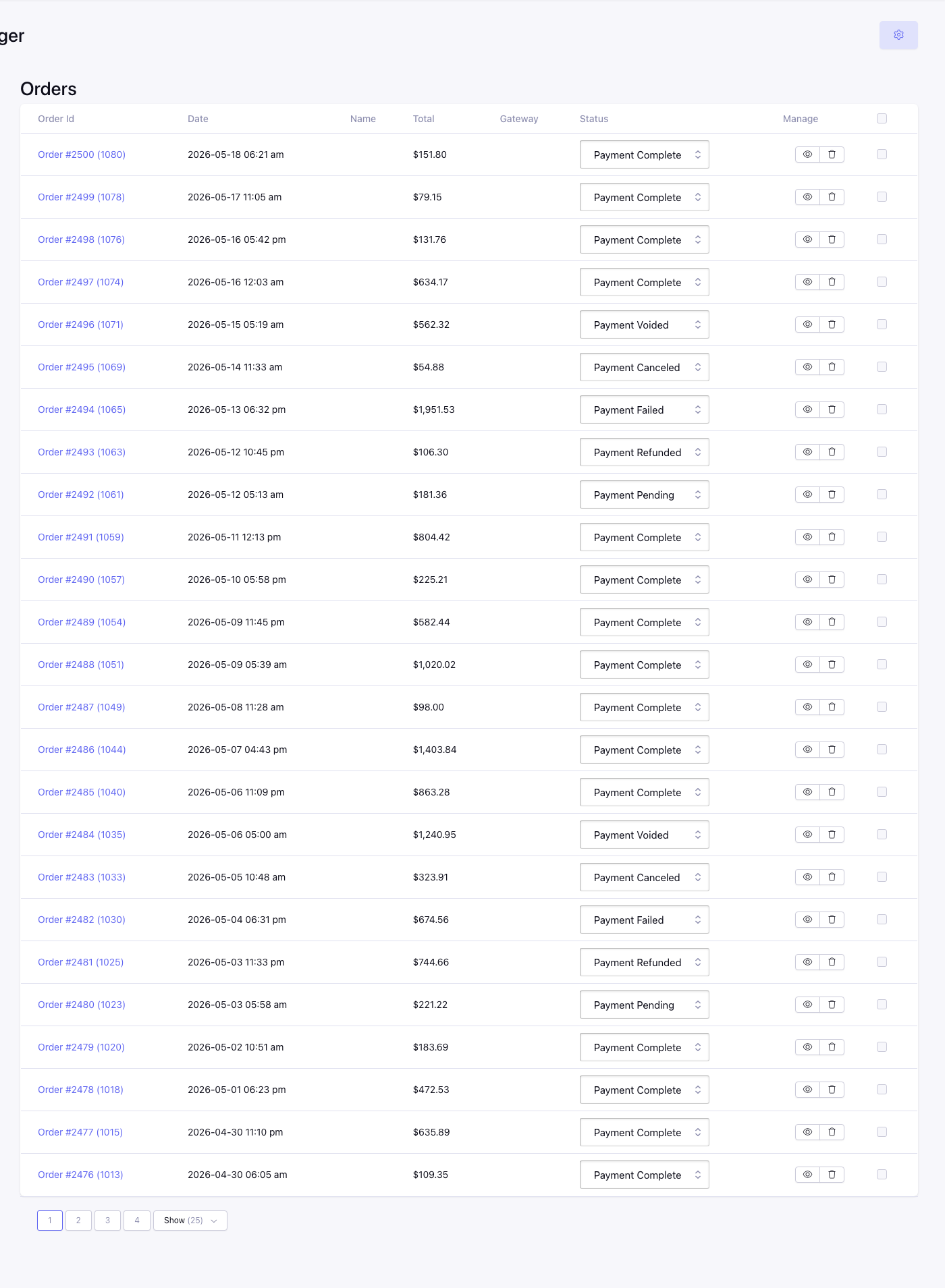
Order table
The table includes:
| Column | Description |
|---|---|
| Order ID | The saved ExpressionEngine order entry. Select it to open Order Manager detail. |
| Date | The order entry date. |
| Name | The saved customer name. Where available, customer links open related order activity. |
| Total | The saved order total in the store currency. |
| Gateway | The payment gateway recorded on the order. |
| Status | The current ExpressionEngine order status and bulk-update selector. |
| Manage | Row actions for viewing or removing the order. |
| Selection | Chooses the row for a bulk status update. |
The list is paginated. Changing the per-page value affects the number of visible rows, not exports or other reports.
Bulk status updates
Each row has a status selector and a selection checkbox.
- Choose the intended status for one or more orders.
- Select the corresponding rows.
- Choose Update Orders.
Only selected rows are changed. A status update changes the saved order entry’s status; it does not capture, void, or refund a payment. Perform payment actions from Order detail when the gateway supports them.
With CartThrob 10 payment reconciliation, affected rows also show Payment needs review or Payment outcome unknown. Open the order to inspect the provider evidence. A bulk status edit does not resolve that incident, change CartThrob’s internal payment state, or create withheld Purchased Item entries. It can send configured status-change notifications; that is separate from checkout’s Completed event.
With paid-order completion, rows with adjusted, refunded, unpaid, or manually handled resolutions show Payment reconciled — provider actions only. Their payment controls remain restricted after reconciliation. Open Order detail to read the merchant’s recorded outcome and any accepted amount.
Row actions
- Select the order ID or View/Manage action to open Order detail.
- Select the customer link, when present, to open an order report filtered for that customer.
- The remove action opens a confirmation screen. Deleting an order is destructive and does not automatically refund its payment.
Finding orders
Use the order report when the list is too broad or when you need filters such as date, status, customer, location, or total range: